
Chat
Antamedia Chat lets you talk with website visitors in real time and turn conversations into useful customer data.
Use it to answer questions, support customers, collect contact details, and continue follow-up from one place inside Antamedia Engage.
Chat Settings
Chat Settings allows you to customize your website chat widget, configure welcome messages, enable AI-powered support, and install the chat on your website.
Getting Started
To add live chat to your website:
Open Chat Settings
Customize your logo and colors in Branding
Set your welcome message in Greetings
Configure AI support and predefined replies in Messages
Open Code, copy the embed script, and add it to your website
Use Preview to test the chat widget
Once installed, visitor conversations will appear in your Chat Inbox.
Branding
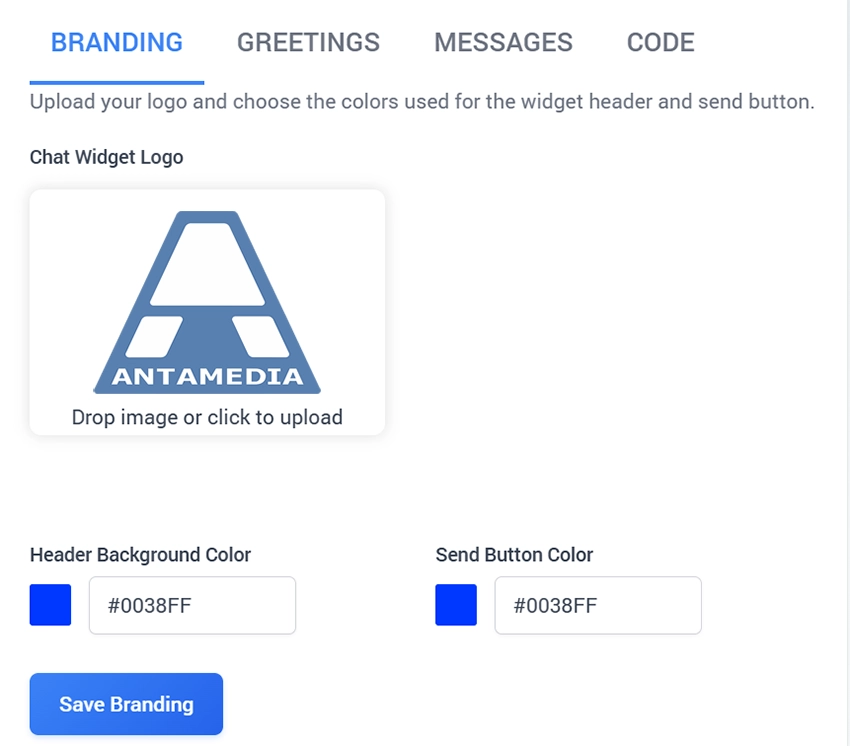
Use the Branding tab to customize the appearance of your chat widget.
Chat Widget Logo: Upload your company logo (recommended PNG size: 180 × 40 px).
Header Background Color: Choose the color of the chat window header.
Send Button Color: Customize the color of the message send button.
Click Save Branding to apply your changes.
Greetings
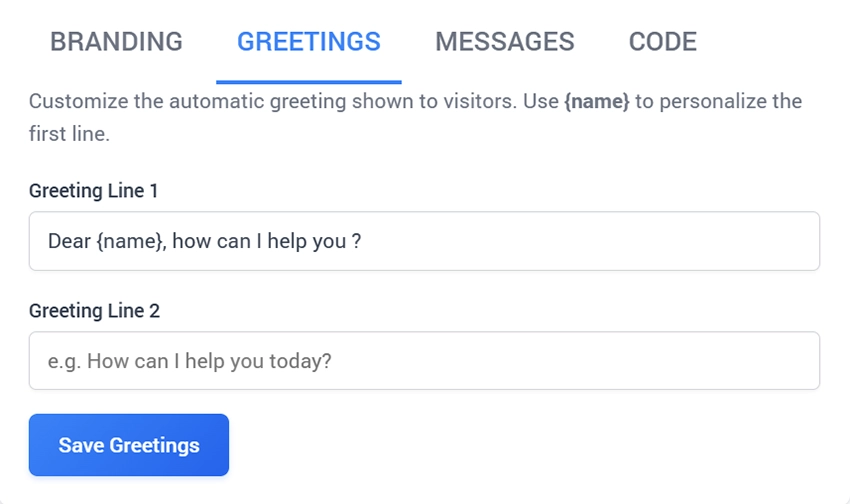
The Greetings tab controls the welcome message displayed to website visitors.
Greeting Line 1: Enter a personalized welcome message. Use {name} to include the visitor's name when available.
Greeting Line 2: Add an optional follow-up message.
For example:
Greeting Line 1: Hello {name}, welcome to Antamedia!
Greeting Line 2: How can we help you today?
Click Save Greetings to save your changes.
Messages
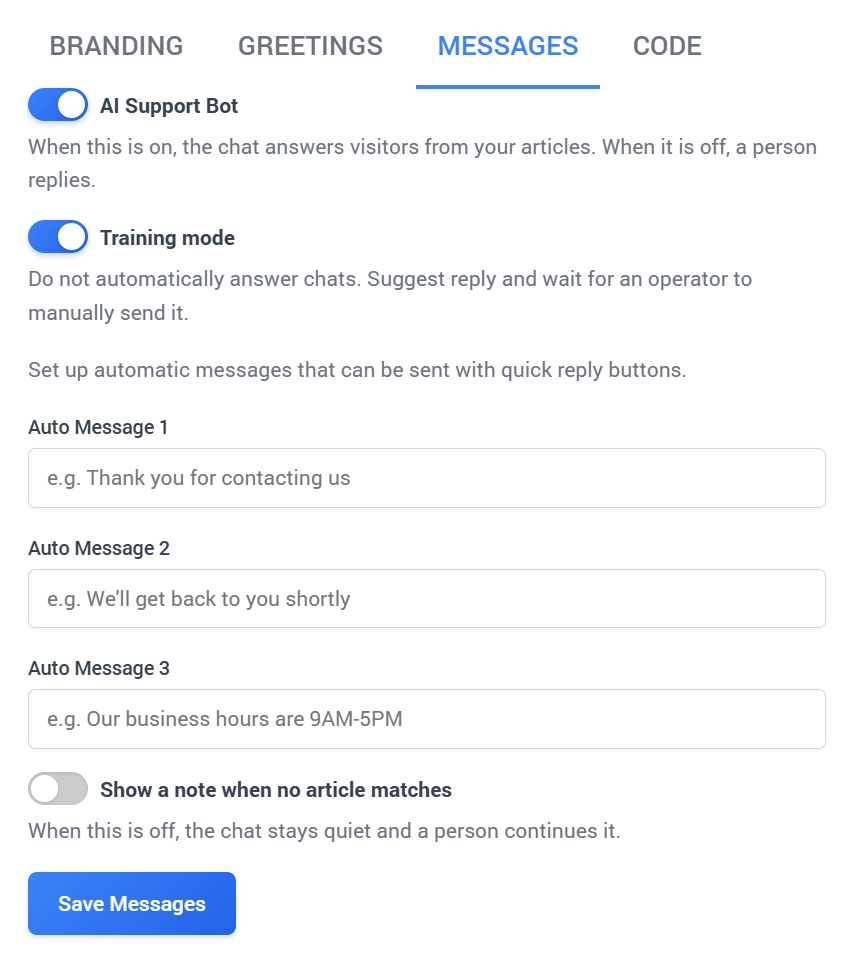
The Messages tab controls AI-powered responses and predefined messages for chat conversations.
AI Support Bot
When enabled, the AI Support Bot uses your knowledge base articles to answer visitor questions.
When disabled, chat conversations are handled by human operators.
Training Mode
When enabled, the AI suggests responses instead of sending them automatically. An operator reviews and manually sends each response.
Use this mode to test and improve your AI knowledge base before enabling automatic replies.
Auto Messages
Configure up to three predefined messages that operators can use as quick replies during conversations.
Typical examples include:
Thank you for contacting us.
We'll get back to you shortly.
Our support team is available during business hours.
Show a note when no article matches
Enable this option to display a note when the AI cannot find a matching knowledge base article.
When disabled, no automatic note is displayed and a human operator can continue the conversation.
Click Save Messages to apply your settings.
Code
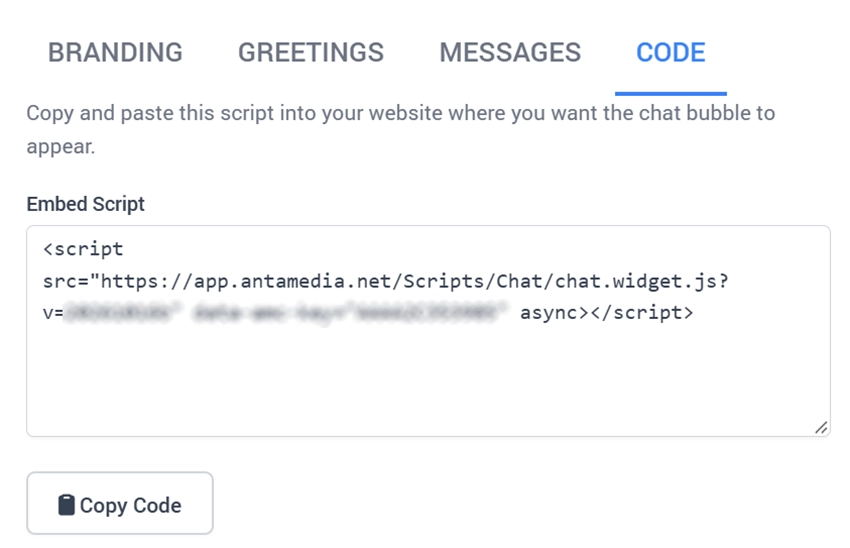
The Code tab provides the script required to display the chat widget on your website.
Open the Code tab.
Click Copy Code.
Paste the generated script into your website's HTML.
Open your website to verify that the chat button appears.
Always use the embed script generated for your own Engage account.
Live Preview
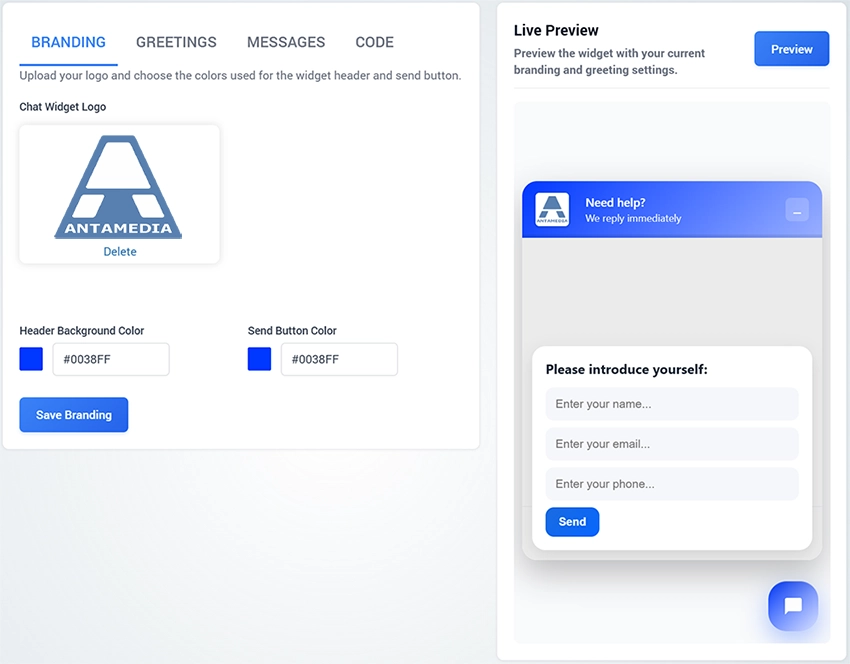
The Live Preview panel allows you to see how your chat widget will appear to visitors.
Click Preview to check the logo, colors, greeting messages, and chat interface before publishing your changes.
Chat Inbox
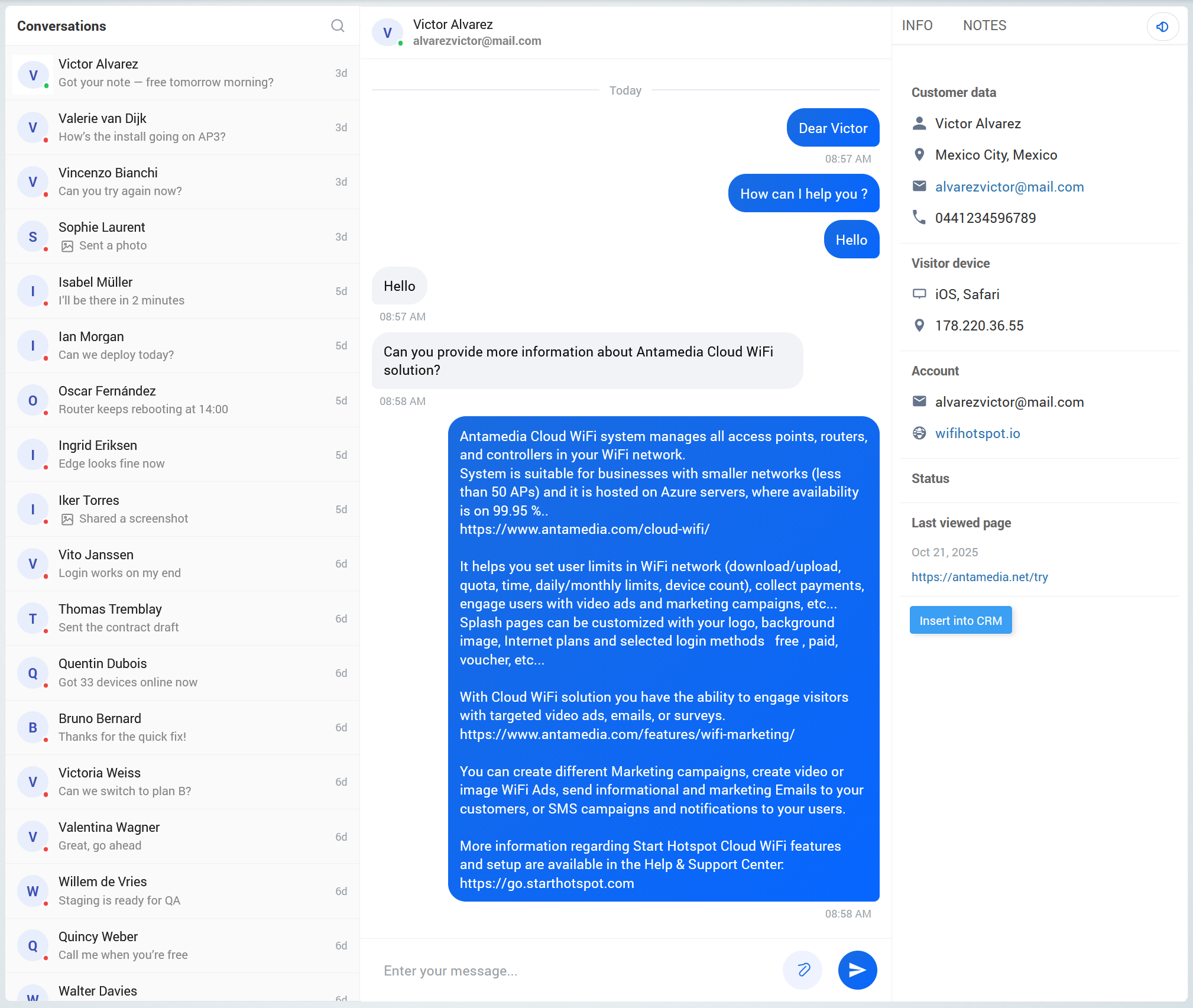
The Chat inbox shows all visitor conversations on the left side.
Each conversation displays the visitor name, latest message preview, and the time of the last activity.
Select a conversation to open the chat and reply from the message box at the bottom of the screen.
The right panel shows useful visitor information, including customer data, visitor device details, account information, status, last viewed page, and notes.
This helps your team understand who the visitor is, what they were viewing, and how the conversation should be handled.
Best Practices
Keep the greeting short and friendly.
Use auto messages for common replies, but keep conversations personal when the visitor needs help.
Check visitor details and last viewed page before replying, because it often explains what the customer is asking about.
Add notes when a conversation needs follow-up by another team member.
Start with Training Mode enabled to review AI-generated responses.
Once your knowledge base is sufficiently accurate, disable Training Mode to allow automatic replies.