
Campaigns
The Campaigns menu is used to create and manage broadcast campaigns, automated email sequences, outreach activity, and reusable message templates in Antamedia Engage.
Use this section to send one-time campaigns, build multi-step follow-up sequences, monitor enrolled leads, and prepare templates that can be reused in future communication.
Campaigns
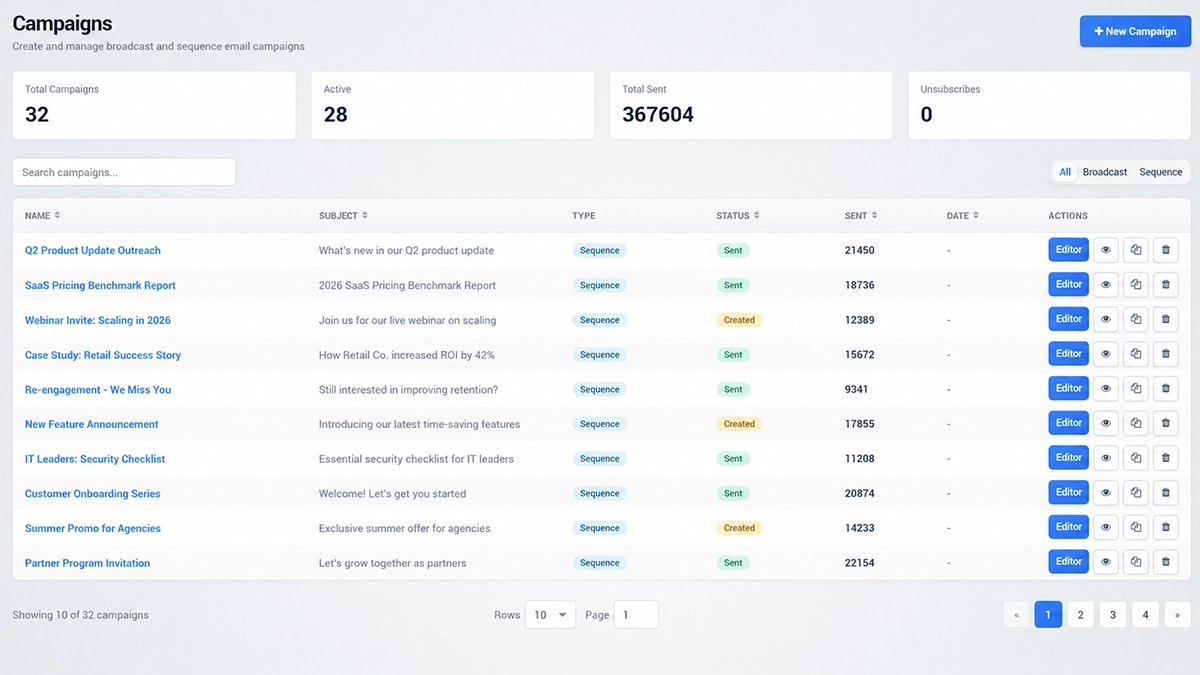
The Campaigns page displays all created broadcast and sequence campaigns.
At the top of the page, you can see summary counters for:
Total Campaigns – the total number of created campaigns.
Active – the number of currently active campaigns.
Total Sent – the number of sent campaign messages.
Unsubscribes – the number of unsubscribed recipients.
The campaign table shows campaign name, subject, type, status, number of sent messages, campaign date, and available actions.
Campaign types can include Broadcast and Sequence.
Campaign status can show whether a campaign is created, saved as draft, active, or sent.
Use the search field to quickly find a campaign by name.
Use the All, Broadcast, and Sequence filters to display only the campaign type you want to review.
The action buttons allow you to open the editor, preview the campaign, duplicate it, or delete it.
Creating a New Campaign
Click New Campaign to start creating a campaign.
The campaign wizard guides you through three main steps:
Campaign Type
Basic Info
Audience
Campaign Type
In the first step, choose the type of campaign you want to create.
Broadcast Campaign is used to send a single email campaign to selected contact segments or recipients.
Sequence Campaign is used to create a multi-step automated follow-up sequence.
Choose Broadcast Campaign when you want to send one message to a selected audience.
Choose Sequence Campaign when you want to send multiple follow-up messages over time.
Click Next to continue.
Basic Info
In the Basic Info step, enter the main campaign details.
Campaign Name is the internal name used to identify the campaign in Engage.
Subject Line is the email subject that recipients will see.
Choose a template to start designing the campaign.
Available starter layouts can include:
Plain card – a simple rounded card layout for text-first newsletters.
Standard newsletter – a header, feature block, supporting copy, and call-to-action layout.
Hero spotlight – a bold promotional layout with a strong call-to-action area.
Digest layout – a structured layout for multiple updates or stories.
Select the layout that best matches the purpose of the campaign, then continue to the next step.
Audience
In the Audience step, choose who will receive the campaign.
You can select Leads or Contacts as the audience source.
Leads are used for outreach campaigns and prospect communication.
Contacts are used for existing customers and contact segments.
For lead recipients, you can choose to send the campaign to selected lead lists or to all leads.
If you select lead lists, choose the list that should receive the campaign.
After the audience is selected, click Create Campaign to save the campaign.
Sequences
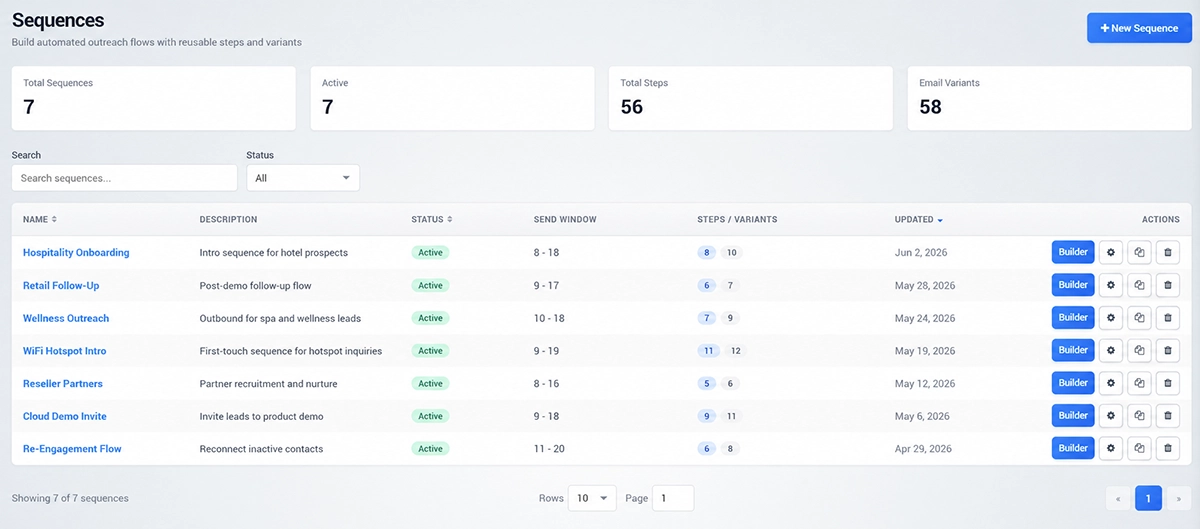
Sequences are used to build automated outreach flows with reusable steps and message variants.
The Sequences page displays all created sequences and their main statistics.
At the top of the page, you can see:
Total Sequences – the total number of created sequences.
Active – the number of active sequences.
Total Steps – the number of steps used across sequences.
Email Variants – the number of message variants created inside sequences.
The sequence table shows the sequence name, description, status, send window, number of steps and variants, last update date, and available actions.
Use the search field to find a sequence by name.
Use the status filter to show all sequences or only sequences with a specific status.
Click New Sequence to create a new automated sequence.
Click Builder to open the sequence builder and edit the steps.
Sequence Builder
The Sequence Builder is used to define the steps and timing of an automated follow-up sequence.
A sequence can contain multiple steps.
Each step represents one follow-up message.
Click Add Step to add another message to the sequence.
Inside each step, you can add one or more variants.
Variants allow you to prepare alternative versions of a message within the same step.
Use the Next message in option to define when the next step should be sent.
For example, Step 1 can be sent first, and Step 2 can be scheduled to follow after a selected number of days.
The top-right buttons allow you to preview the sequence, select the language, open sequence settings, or return to the previous page.
Outreach
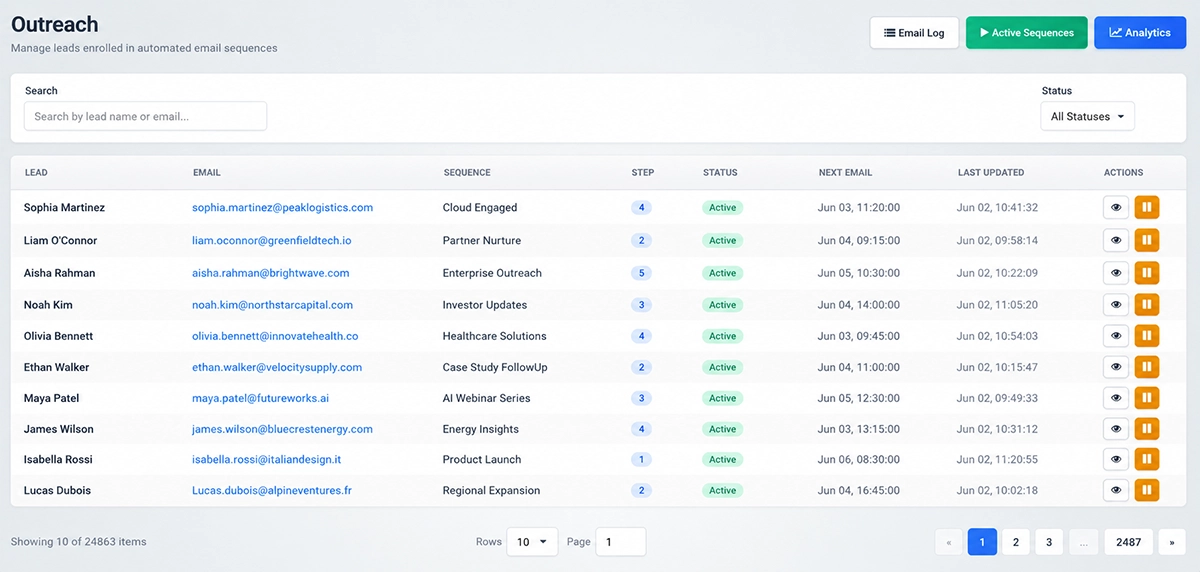
The Outreach page is used to manage leads enrolled in automated email sequences.
This page helps you review which leads are currently part of sequence-based outreach and track their status.
The outreach table can show:
Lead – the enrolled lead.
Email – the lead email address.
Sequence – the sequence assigned to the lead.
Step – the current sequence step.
Status – the current outreach status.
Next Email – the next scheduled email.
Last Updated – the last activity or update date.
Actions – available management options.
Use the search field to find outreach records by lead name or email address.
Use the status filter to display only leads with a specific outreach status.
Click Email Log to review email sending activity.
Click Active Sequences to view active automated sequences.
Click Analytics to review outreach performance.
Templates
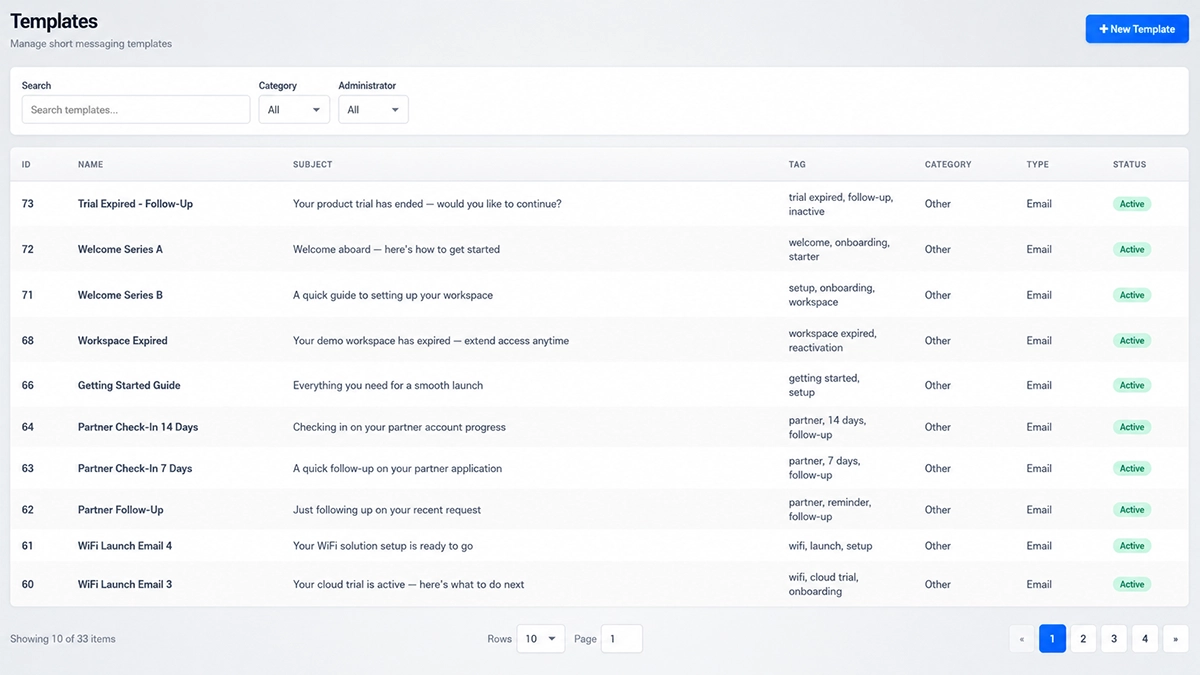
The Templates page is used to manage reusable message templates.
Templates help you prepare common messages in advance and reuse them in campaigns, sequences, or other communication workflows.
The templates table can include:
ID – the template ID.
Name – the template name.
Subject – the template subject.
Tag – the assigned tag.
Category – the template category.
Type – the template type.
Status – the current template status.Use the search field to find templates by name or keyword.
Use the Category filter to show templates from a specific category.
Use the Administrator filter to show templates created or managed by a specific administrator.
Click New Template to create a new reusable template.
Best Practice
Use Broadcast Campaigns for one-time announcements, newsletters, promotions, or updates.
Use Sequence Campaigns when you need automated follow-up over several days or steps.
Prepare templates before creating campaigns to save time and keep communication consistent.
Use clear campaign names so your team can quickly understand the purpose of each campaign.
Check the campaign status before sending, especially when working with drafts and created campaigns.
Review Outreach and Email Log regularly to confirm that sequence communication is being processed as expected.