
Delivery
The Delivery section controls how Engage sends messages.
Use it to configure sender mailboxes, connect email, WhatsApp, or SMS providers, monitor sending limits, warm up email accounts, check domain health, and manage addresses that should not receive future messages.
Mailboxes
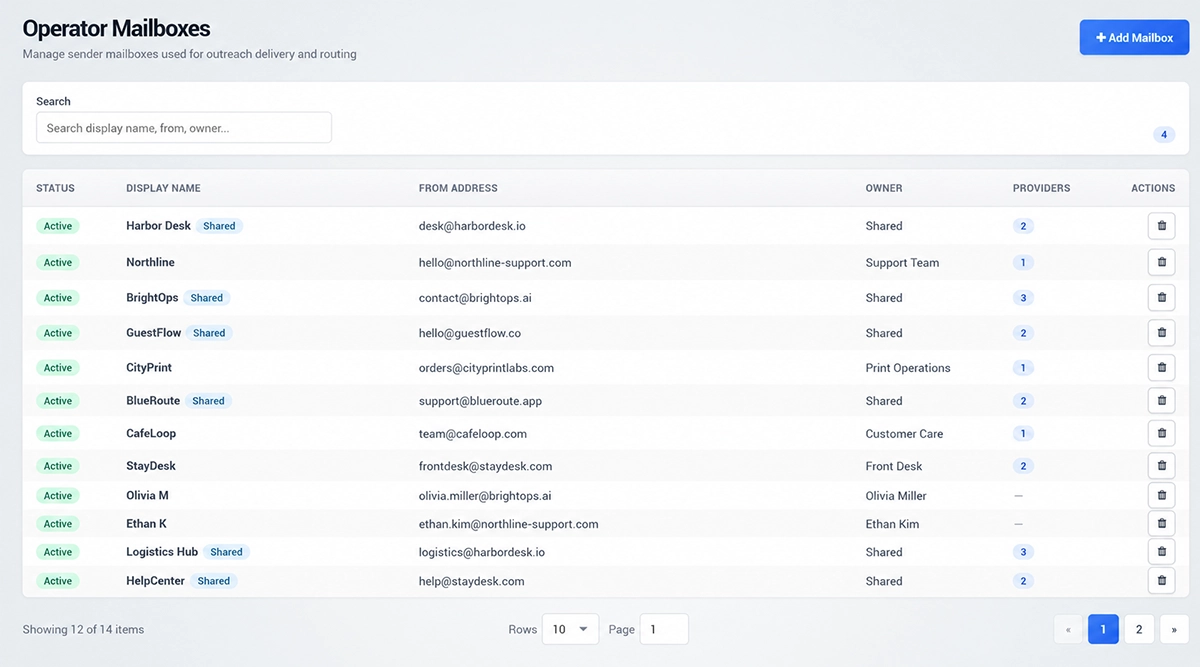
Mailboxes define the sender identities used for outreach, campaigns, replies, and routing.
Each mailbox includes a display name, from address, owner, connected provider, and status.
Use Add Mailbox to create a new sender mailbox.
A mailbox can be personal or shared between operators, depending on how your team handles communication.
When creating a mailbox, choose the mailbox type, enter the mailbox name, from address, from name, optional reply-to address, and optional signature.
Supported mailbox types can include Email, WhatsApp, SMS, and LinkedIn.
Keep the mailbox active if it should be available for sending and routing.
Providers
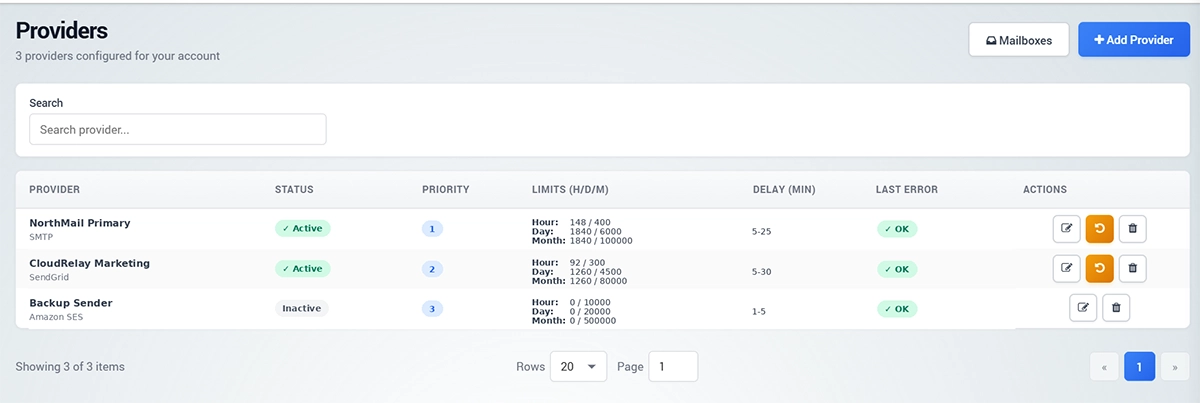
Providers are the delivery services used by Engage to send messages.
A mailbox defines who the message is sent from, while a provider defines how the message is sent.
The Providers page shows configured providers, their status, priority, limits, delay, last error, and available actions.
Use Add Provider to connect a new sending provider.
Available provider types can include:
Email providers: SMTP, Amazon SES, SendGrid, Gmail OAuth, and Outlook OAuth.
WhatsApp providers: UltraMsg and Twilio WhatsApp.
SMS providers: Twilio SMS.
When adding a provider, enter the provider name, sending limits, and delay settings.
Limits help control how many messages can be sent per hour, per day, or per month.
Delay settings help spread sending over time instead of sending all messages at once.
If a provider shows an error, open the provider settings, check the credentials, and review the last error message.
Email Warmup
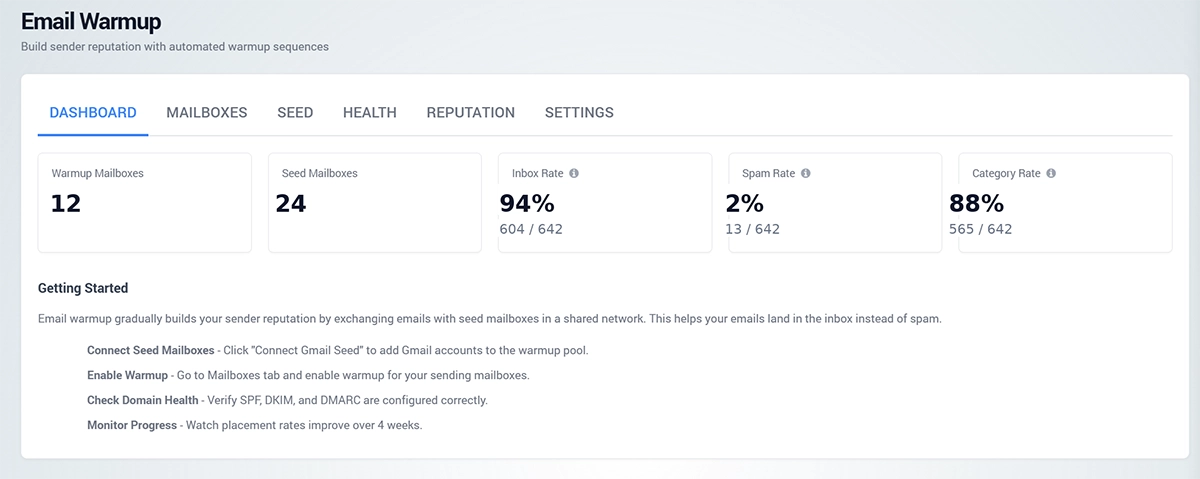
Email Warmup helps build sender reputation gradually before larger outreach campaigns.
Warmup is useful when a mailbox is new, inactive, or not yet trusted by receiving mail servers.
The warmup dashboard shows warmup mailboxes, seed mailboxes, inbox rate, spam rate, and category rate.
The goal is simple: help your messages land in the inbox instead of spam.
To start warmup, connect seed mailboxes, enable warmup for sending mailboxes, check domain health, and monitor results over time.
Warmup Mailboxes
The Mailboxes tab shows mailboxes that are enabled for warmup.
You can review status, sending day, daily maximum, messages sent today, inbox rate, spam rate, and available actions.
If no warmup mailbox is configured, enable warmup from the mailbox settings.
Seed Mailboxes
Seed mailboxes are used to receive warmup messages.
Connect Gmail seed accounts owned by your organization and use them as part of the warmup process.
These mailboxes help Engage test inbox placement and improve sender reputation signals.
Health
The Health tab checks whether sending domains are correctly authenticated.
Use Check Domain Health to verify SPF, DKIM, DMARC, and MX configuration.
These records are important because they help receiving mail servers confirm that your messages are legitimate.
If domain health is not configured correctly, email delivery may be weaker or messages may be marked as spam.
Reputation
The Reputation tab helps you monitor warmup performance.
You can review active mailboxes, total sent messages, replies, average sending day, daily send trends, inbox placement, spam placement, hourly sending pattern, and mailbox performance.
Use this section to confirm that warmup is progressing normally and that sending is spread over time.
Settings
The Settings tab controls warmup behavior.
You can choose the ramp schedule, set the default daily maximum, enable auto-pause when spam rate is too high, respect the sending window, and enable warmup logging.
Use a gradual ramp schedule to avoid increasing sending volume too quickly.
Suppressions
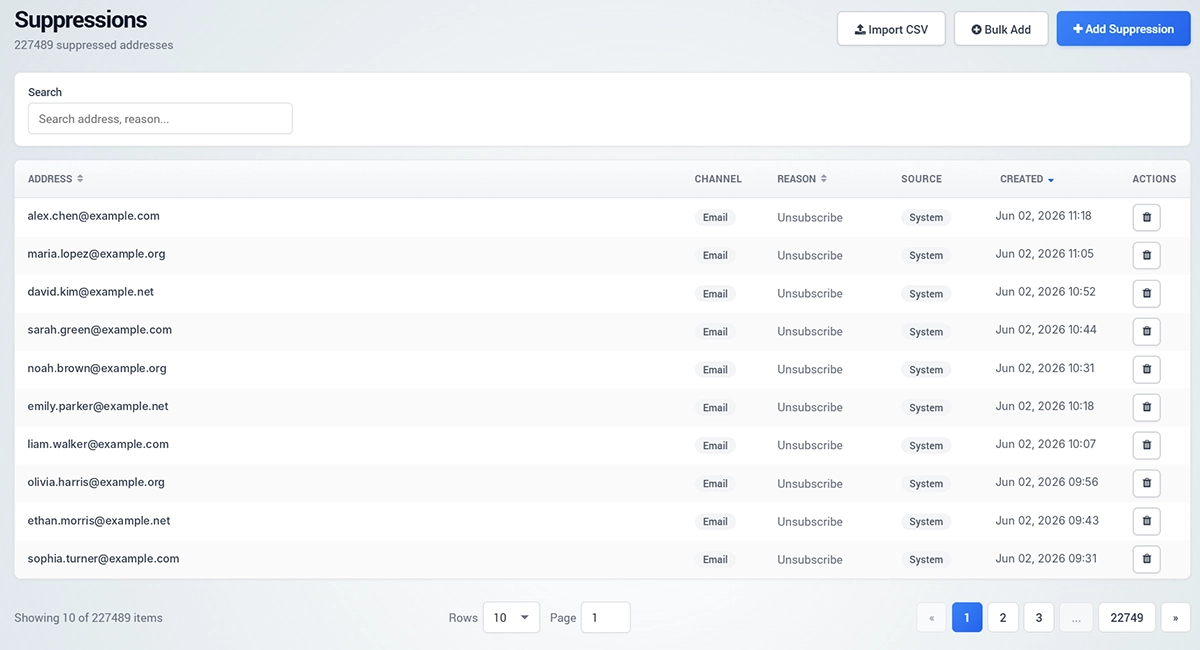
Suppressions are addresses that should not receive future messages.
Use Suppressions to prevent sending to unsubscribed, blocked, invalid, or manually excluded recipients.
You can add a suppression manually, bulk add addresses, or import them from a CSV file.
Each suppression record can include address, channel, reason, source, created date, and available actions.
This protects your sender reputation and helps prevent unwanted communication.
Best Practice
Set up providers before creating active mailboxes.
Use realistic sending limits and delays, especially when starting with a new provider.
Check domain health before sending campaigns.
Warm up new mailboxes before larger outreach.
Keep suppression lists clean and up to date so Engage does not send messages to contacts who should be excluded.