
Contacts
The Contacts section is used to manage customer records, leads, lists, segments, and contact imports in Antamedia Engage.
Use this section to organize your contact database, qualify leads, prepare audiences for campaigns, create dynamic segments, and import contacts from CSV files.
Contacts
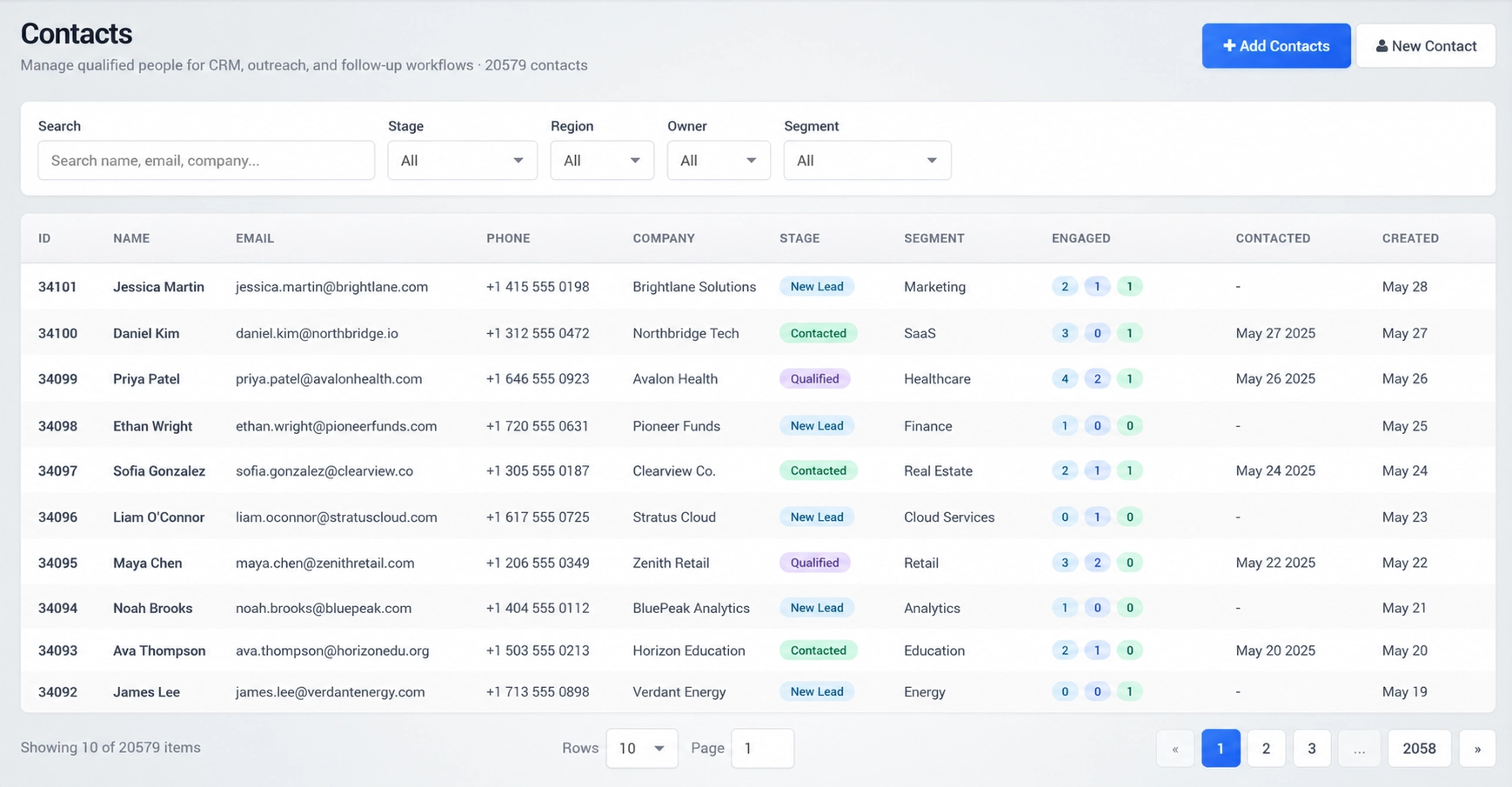
The Contacts page displays saved customer contacts and qualified people used for CRM, outreach, and follow-up workflows.
Each contact record can include the contact name, email address, phone number, company, stage, segment, engagement activity, last contacted date, and created date.
Use the search field to find contacts by name, email, or company.
You can also filter contacts by stage, region, owner, or segment. These filters help you quickly find the right audience for follow-up, campaigns, or customer management.
Click New Contact to manually create a new contact record.
Click Add Contacts to add multiple contacts or use available contact import options.
The Engaged column shows activity counters for each contact, helping you understand how active or responsive the contact is across communication channels or campaign interactions.
Leads
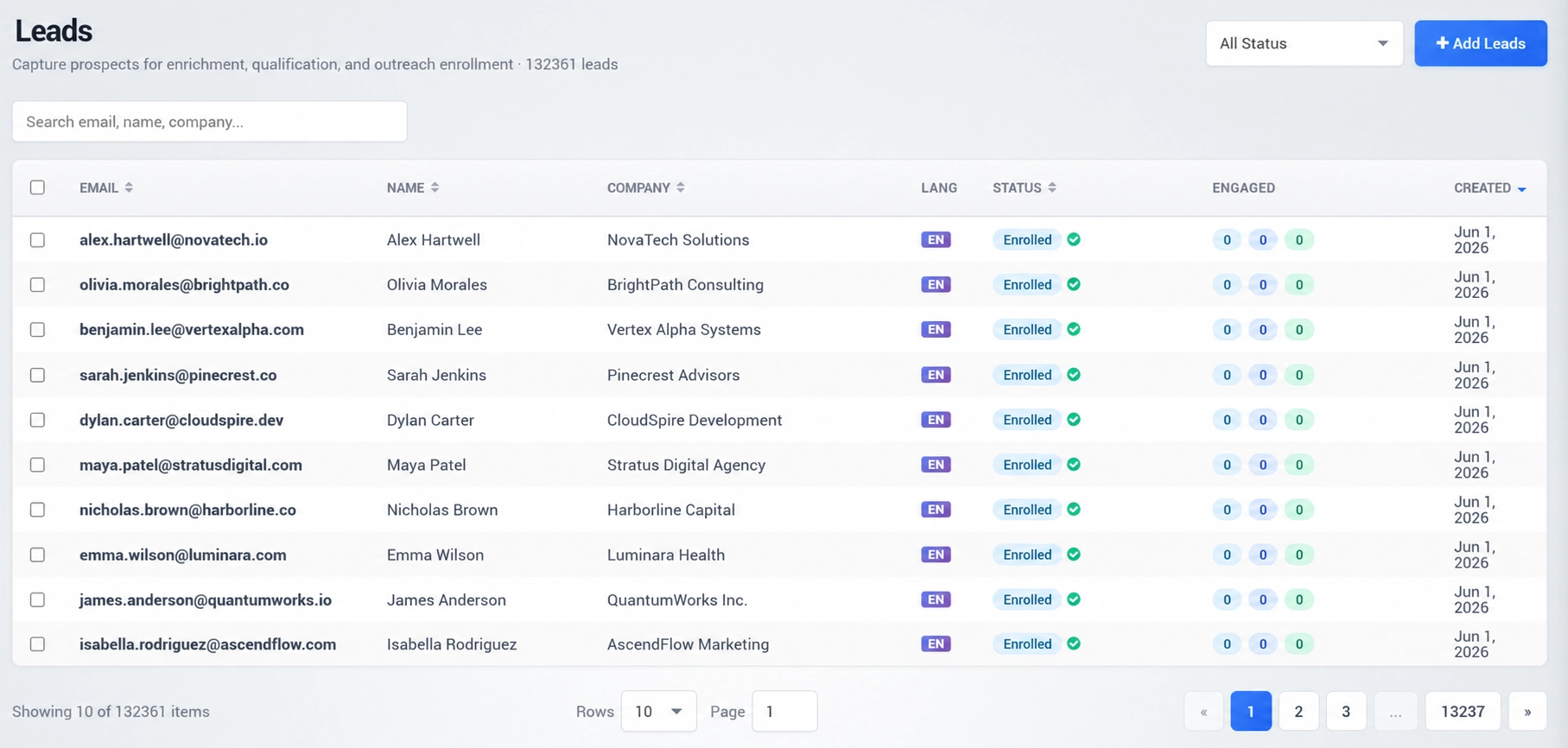
The Leads page is used to capture and manage prospects before they become fully qualified contacts.
Leads can be collected through Engage forms, imports, campaigns, or other lead collection sources.
Each lead record can include email, name, company, language, status, engagement counters, and created date.
Lead status helps you understand where each prospect is in the qualification process.
Common statuses include New, Verified, and Converted.
Use the search field to find leads by email, name, or company.
Use the status filter to display only leads with a specific status.
Click Add Leads to manually add new leads or use available lead creation options.
Review new leads regularly, qualify them, and convert them into contacts when they are ready for follow-up or campaigns.
Lists
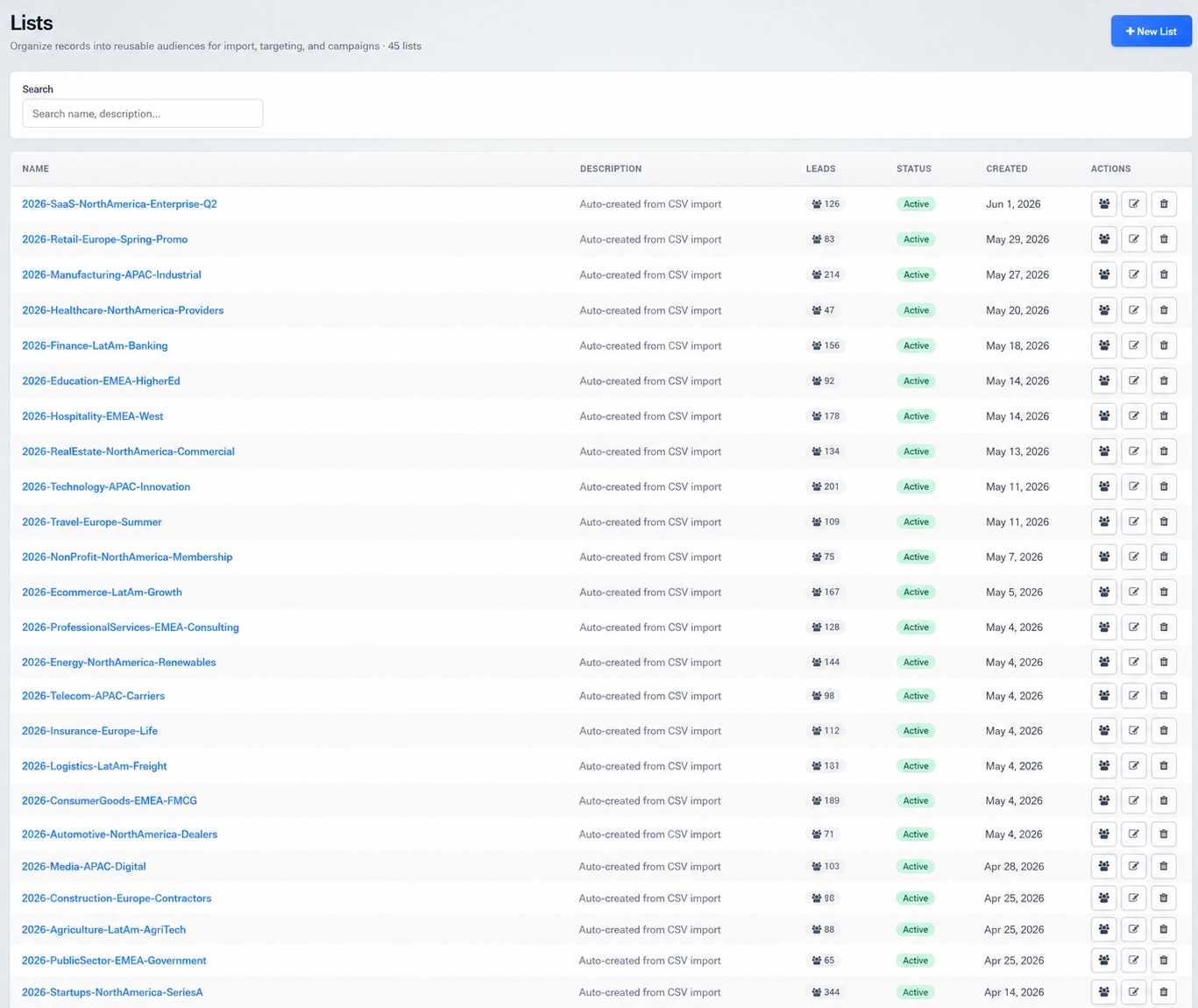
Lists are used to organize records into reusable audiences for imports, targeting, and campaigns.
Use lists when you want to group leads or contacts into a fixed audience that can be used later for communication or campaign targeting.
Each list can include a name, description, number of leads, status, created date, and available actions.
Click New List to create a new reusable audience list.
Use a clear list name that describes the purpose of the audience, such as Hotel Guests, Restaurant Visitors, Newsletter Subscribers, Event Leads, or VIP Customers.
Use the search field to find a list by name or description.
Lists are useful for stable audiences that should remain grouped together, such as contacts imported from a specific event, location, form, or customer source.
Segments
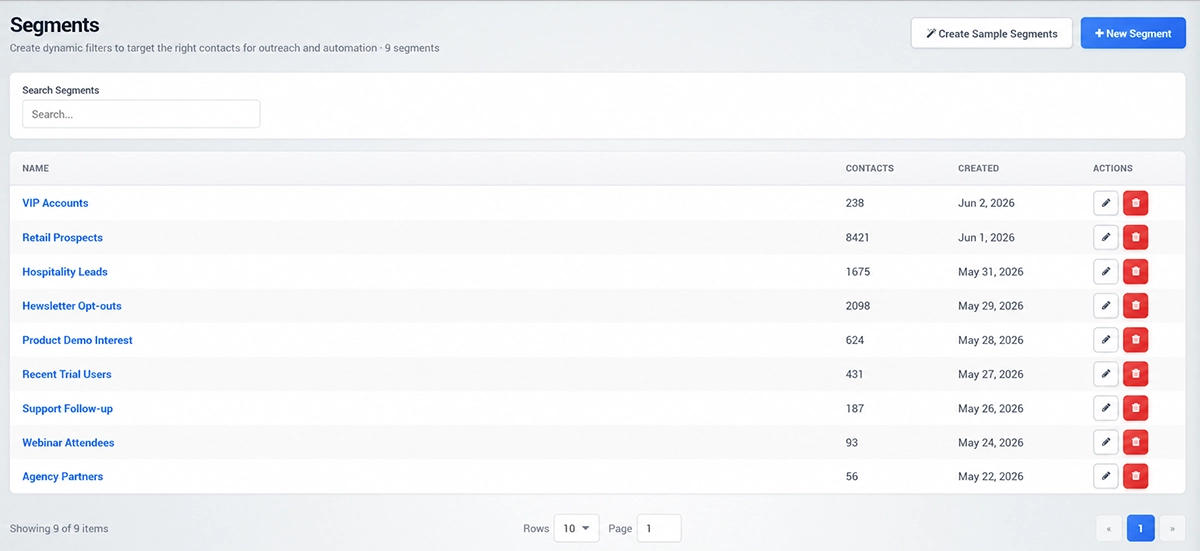
Segments are used to create dynamic filters that target the right contacts for outreach, automation, and campaigns.
Unlike lists, which are fixed groups of records, segments are dynamic audiences based on selected criteria.
Each segment can include a name, number of matching contacts, created date, and available actions.
Click New Segment to create a new audience segment.
A segment can be used to target contacts based on contact details, activity, status, location, or other available criteria.
Click Create Sample Segments to generate example segments. Sample segments can help you understand how segmentation works and can be used as a starting point for your own targeting rules.
Use the search field to quickly find an existing segment by name.
Use lists when you want to keep a specific group of contacts together.
Use segments when you want the audience to update automatically based on matching rules.
Import Contacts
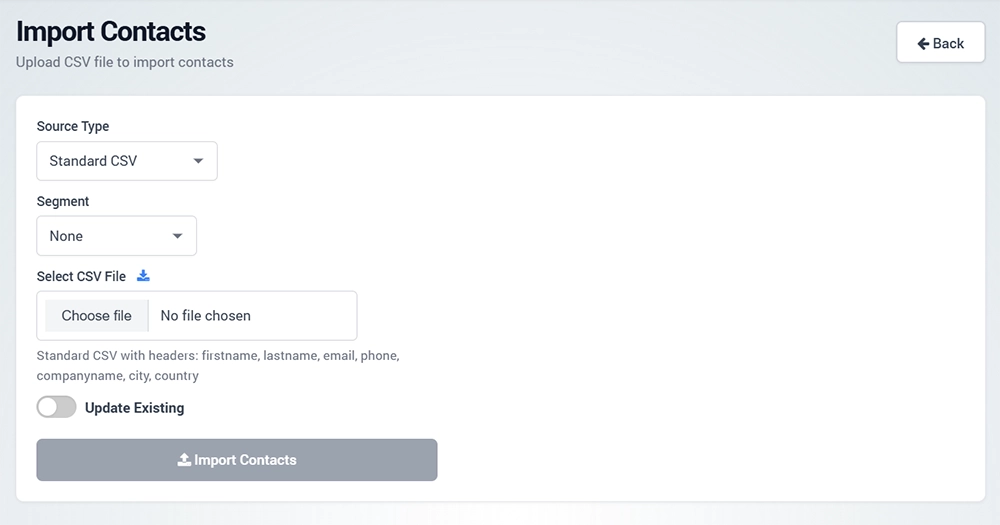
The Import Contacts page is used to upload contacts into Engage from a CSV file.
Use this option when you already have a contact database, lead export, customer list, or external source file that you want to add to Engage.
To import contacts, prepare a CSV file with the required contact fields.
The standard CSV format supports the following headers:
firstname
lastname
phone
companyname
city
country
Using the correct headers helps Engage map the imported data properly.
Select the source type before uploading the file. For a regular contact import, use Standard CSV.
Use the Segment option if you want to assign imported contacts to an existing segment. If no segment should be assigned during import, leave this option set to None.
Click Choose file and select the CSV file from your computer.
Enable Update Existing if you want Engage to update existing records when matching contacts are found.
This is useful when you are importing a newer version of an existing contact database.
After selecting the source type, segment, and CSV file, click Import Contacts.
Engage will process the file and add or update contacts based on the selected options.
Best Practice
Keep contact information complete and accurate before sending campaigns.
Use leads for new prospects that still need to be qualified.
Use contacts for qualified people and customer records.
Use lists for fixed audiences, such as imported groups or event contacts.
Use segments for dynamic targeting based on rules and filters.
Before importing contacts, check that your CSV file is clean, correctly formatted, and uses the supported column headers.
When importing contacts for a specific campaign or source, assign them to a list or segment so they can be easily targeted later.