
Live Chat
Live Chat lets you talk with website visitors in real time and turn conversations into useful customer data.
Use it to answer questions, support customers, collect contact details, and continue follow-up from one place inside Antamedia Engage.
Chat Settings
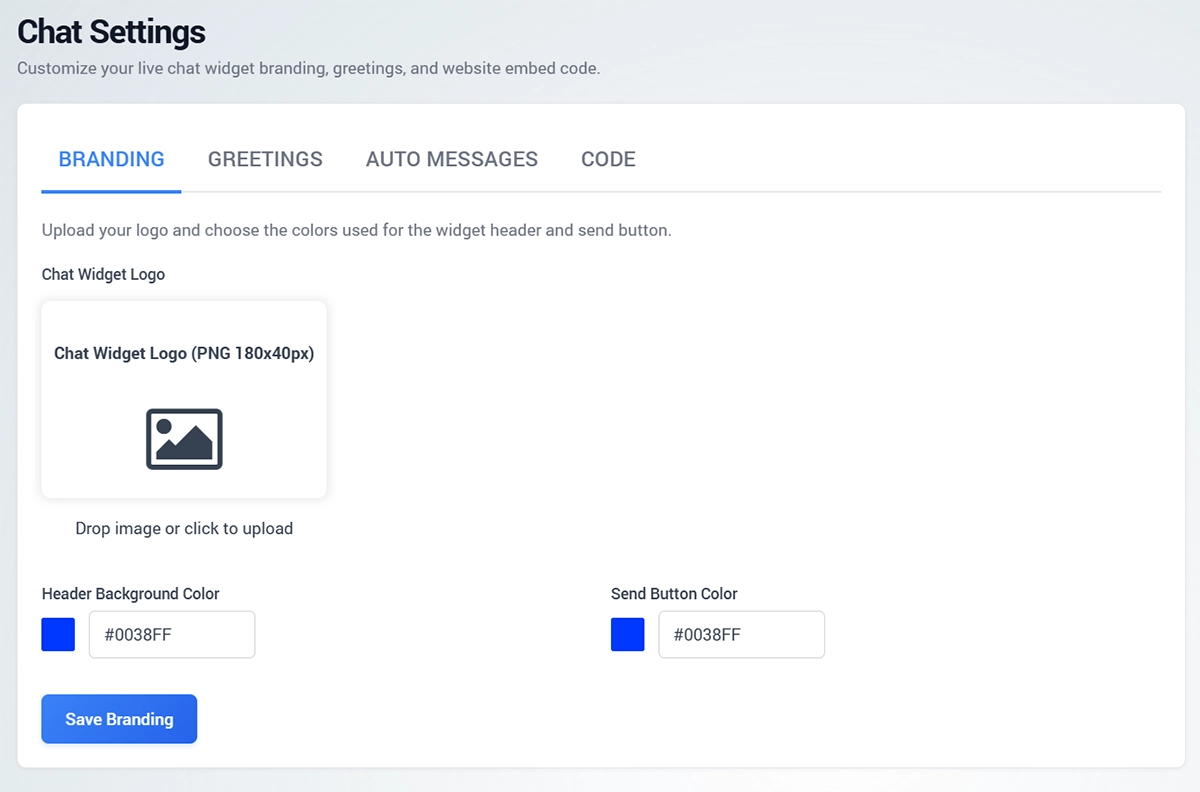
Open Chat Settings to customize how the live chat widget appears and works on your website.
Branding
The Branding tab is used to match the chat widget with your company design.
You can upload a chat widget logo, set the header background color, and choose the send button color.
Use the live preview to check how the widget will look before saving changes.
Greetings
The Greetings tab controls the welcome message shown to visitors.
You can customize two greeting lines, such as a personal opening and a short question.
Use {name} when you want to personalize the first line with the visitor name, when available.
Auto Messages
Auto Messages are quick replies that operators can use during chat conversations.
They are useful for common responses such as thanking the visitor, explaining business hours, or letting the visitor know that someone will reply shortly.
Prepare short, friendly messages that your team can send with one click.
Code
The Code tab provides the embed script for your website.
Copy the generated script and paste it into the website where you want the chat bubble to appear.
Always use the code generated in your own Engage account. Do not copy the code from screenshots or another account.
Previewing the Widget
Use the Preview button to test the chat widget with the current branding and greeting settings.
This helps you confirm that the logo, colors, welcome message, and chat button look correct before publishing the widget on your website.
Chat Inbox
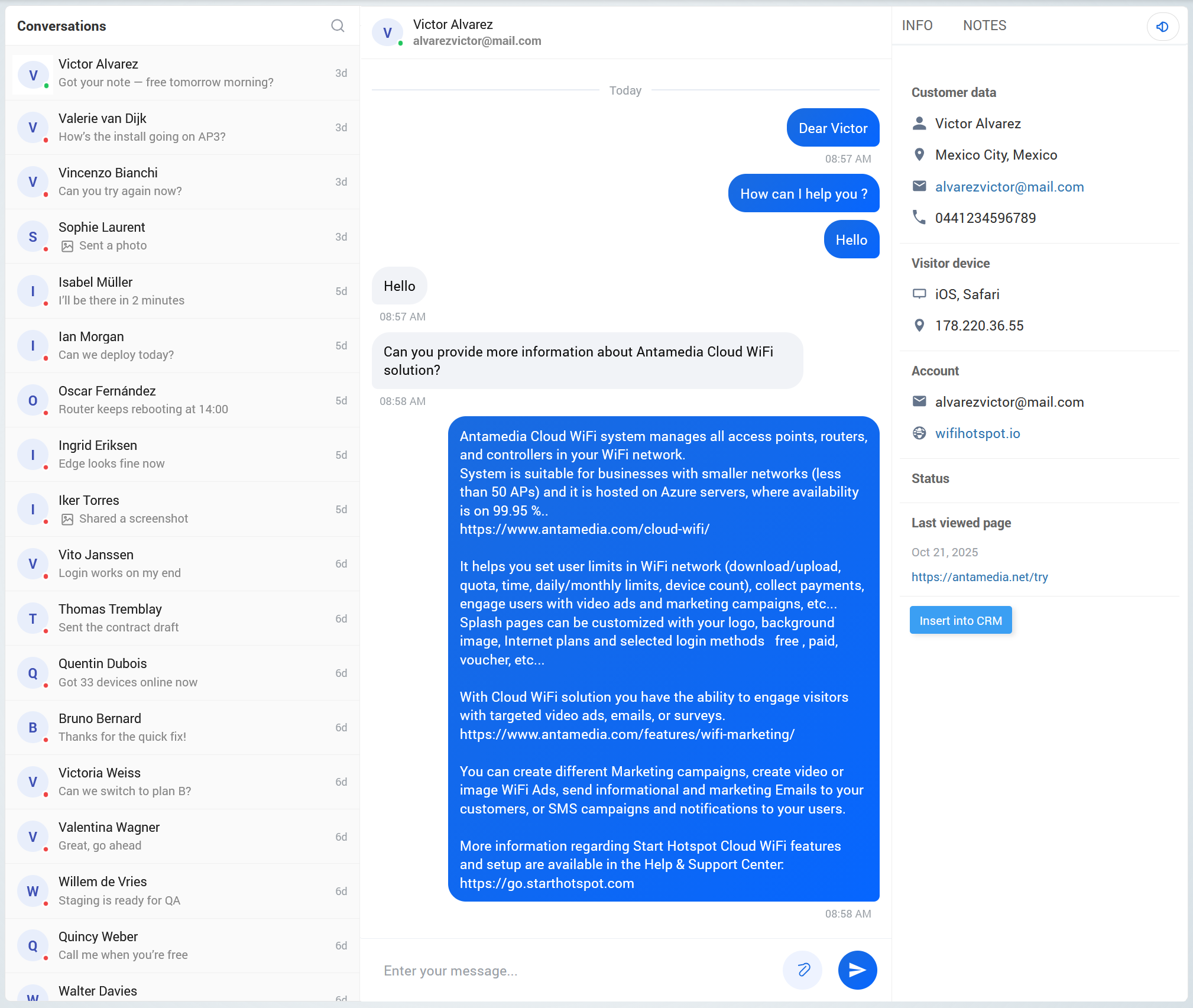
The Live Chat inbox shows all visitor conversations on the left side.
Each conversation displays the visitor name, latest message preview, and the time of the last activity.
Select a conversation to open the chat and reply from the message box at the bottom of the screen.
The right panel shows useful visitor information, including customer data, visitor device details, account information, status, last viewed page, and notes.
This helps your team understand who the visitor is, what they were viewing, and how the conversation should be handled.
Best Practices
Keep the greeting short and friendly.
Use auto messages for common replies, but keep conversations personal when the visitor needs help.
Check visitor details and last viewed page before replying, because it often explains what the customer is asking about.
Add notes when a conversation needs follow-up by another team member.