
Smart Forms
Smart Forms help you turn visitors into leads, contacts, or hotspot users by collecting the right information through simple online forms.
Use Smart Forms to capture interest, qualify visitors, assign tags, and prepare people for follow-up campaigns inside Antamedia Engage.
Smart Forms Overview
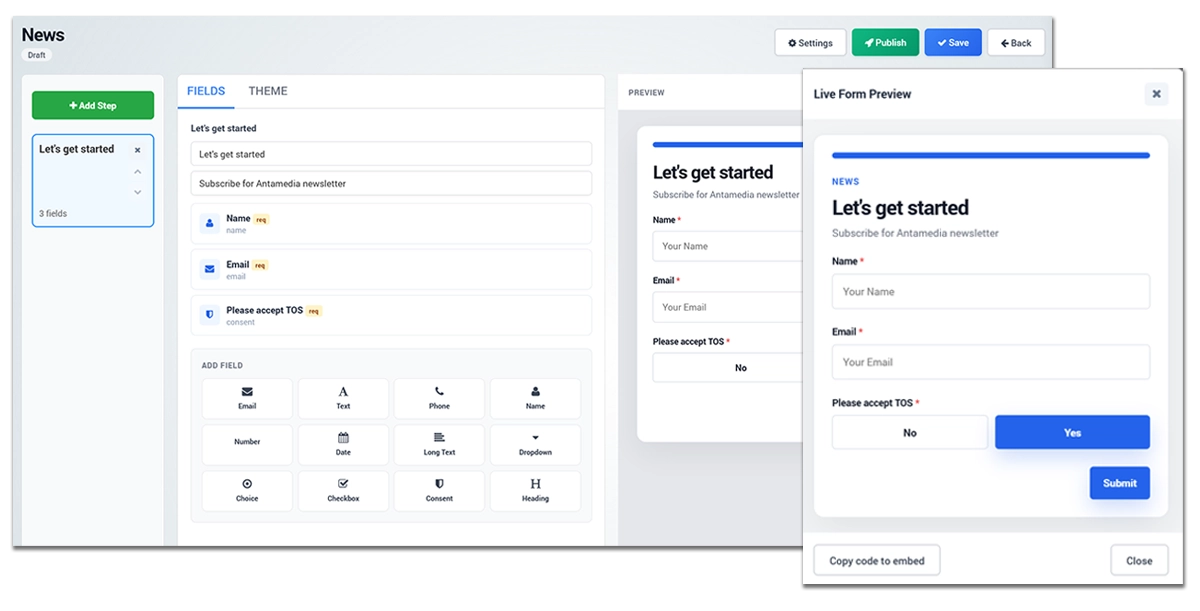
The Smart Forms page shows all forms created in your Engage account.
At the top of the page, you can quickly see how many forms are total, active, draft, or published.
Use the search field to find a form by name or public ID.
Use the Target filter to show forms created for a specific audience type, and the Status filter to display draft, active, or paused forms.
Each form shows its name, mode, target, status, version, published date, and available actions.
Click Builder to edit a form.
Click New Form to create a form manually.
Click AI Builder to create a guided form with fewer mistakes.
Click Manage Tags to organize the tags used for segmentation and campaign targeting.
Creating a Form with AI Builder
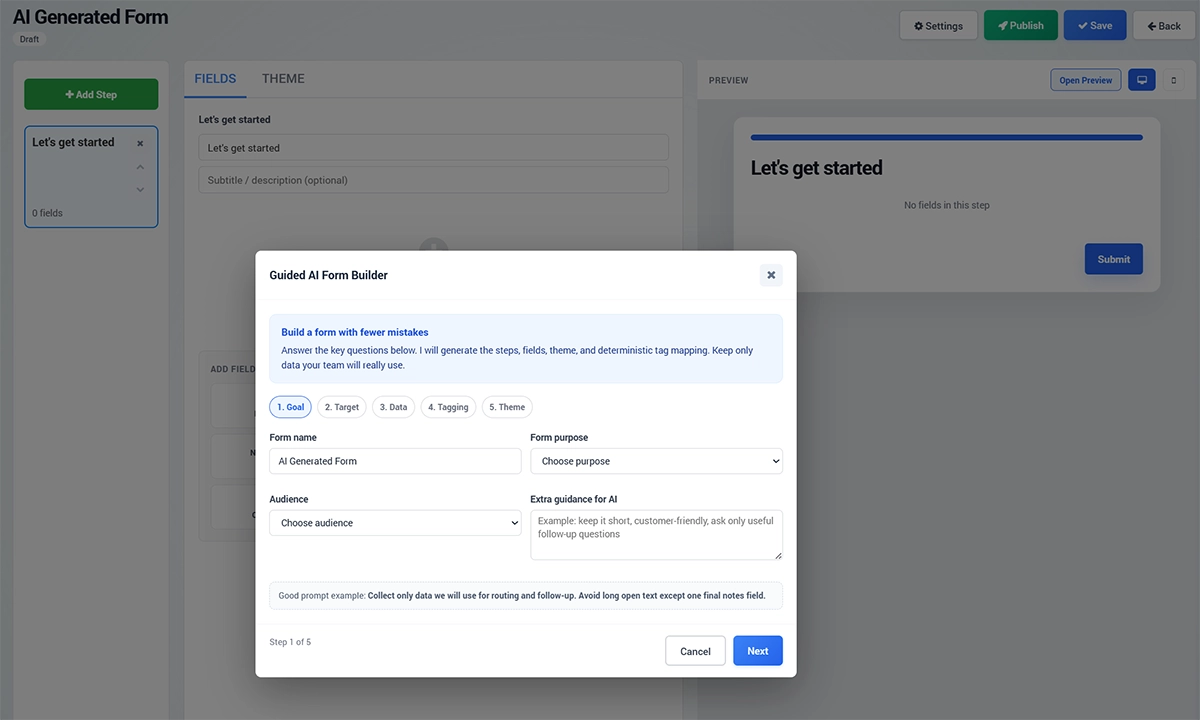
The Guided AI Form Builder helps you create a form step by step.
Instead of building everything manually, you answer a few key questions and Engage prepares the form structure, fields, theme, and tag mapping.
Step 1: Goal
Start by entering the form name, choosing the form purpose, selecting the audience, and adding any extra guidance for AI.
Use the extra guidance field to explain what the form should focus on.
For example, you can ask Engage to keep the form short, customer-friendly, and focused only on information needed for follow-up.
Step 2: Target
Choose what type of record the form should create.
Lead is best for lightweight capture and list-based follow-up.
Contact is best when you want CRM-style contact records and segmentation.
Hotspot User Only is used when the form should create only a hotspot user.
Hotspot User + Lead creates both a hotspot user and a lead.
Hotspot User + Contact creates both a hotspot user and a contact.
You can also choose the default destination, such as a contact list, and select how the form steps should be arranged.
All in one step is useful for short forms.
Balanced multi-step is recommended for most forms.
One question per step works well for very short or focused flows.
Step 3: Data
Choose which information the form should collect.
Common fields include full name, email, phone, company name, website, country, city, and open notes.
Keep the form short. In most cases, it is better to collect only the information your team will actually use.
Email is usually the most important field for lead and contact forms.
Company name is useful for B2B qualification.
Phone should be added only when your team plans to call the customer.
Step 4: Tagging
Tagging helps Engage understand and organize form answers for future targeting.
You can create taggable categories such as customer interests, timing, industry, customer type, location, budget fit, or additional needs.
For example, customer interest options can include Pricing, Demo, Product Information, Special Offers, Support, and Newsletter.
These tags can later be used to create segments and send more relevant campaigns.
Form Builder
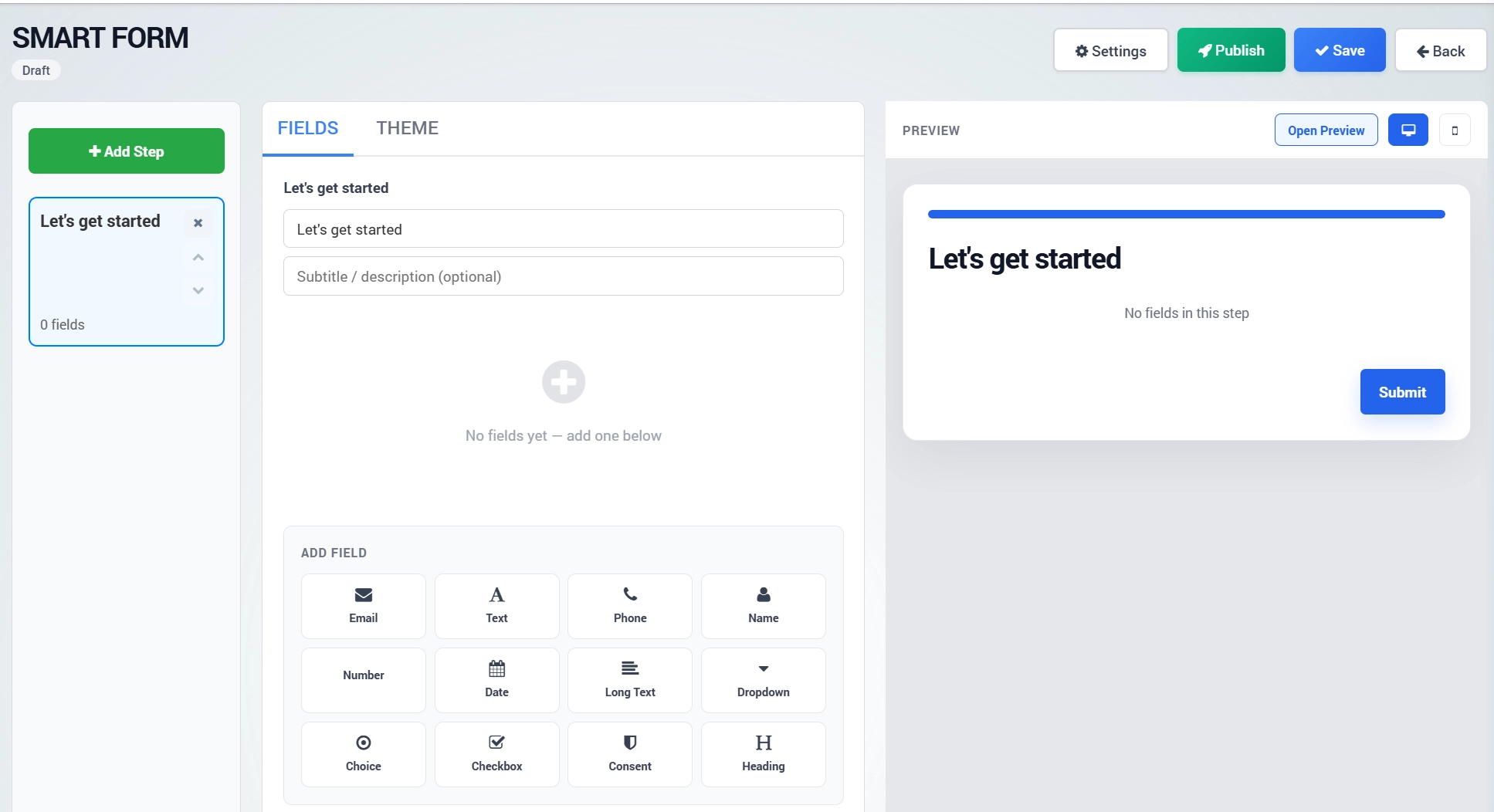
The Form Builder is used to edit the final form.
The left panel shows form steps.
Click Add Step to add another step to the form.
The main editor lets you edit form fields and form content.
The preview panel shows how the form will look to visitors.
Use Open Preview to test the form before publishing.
Theme Settings
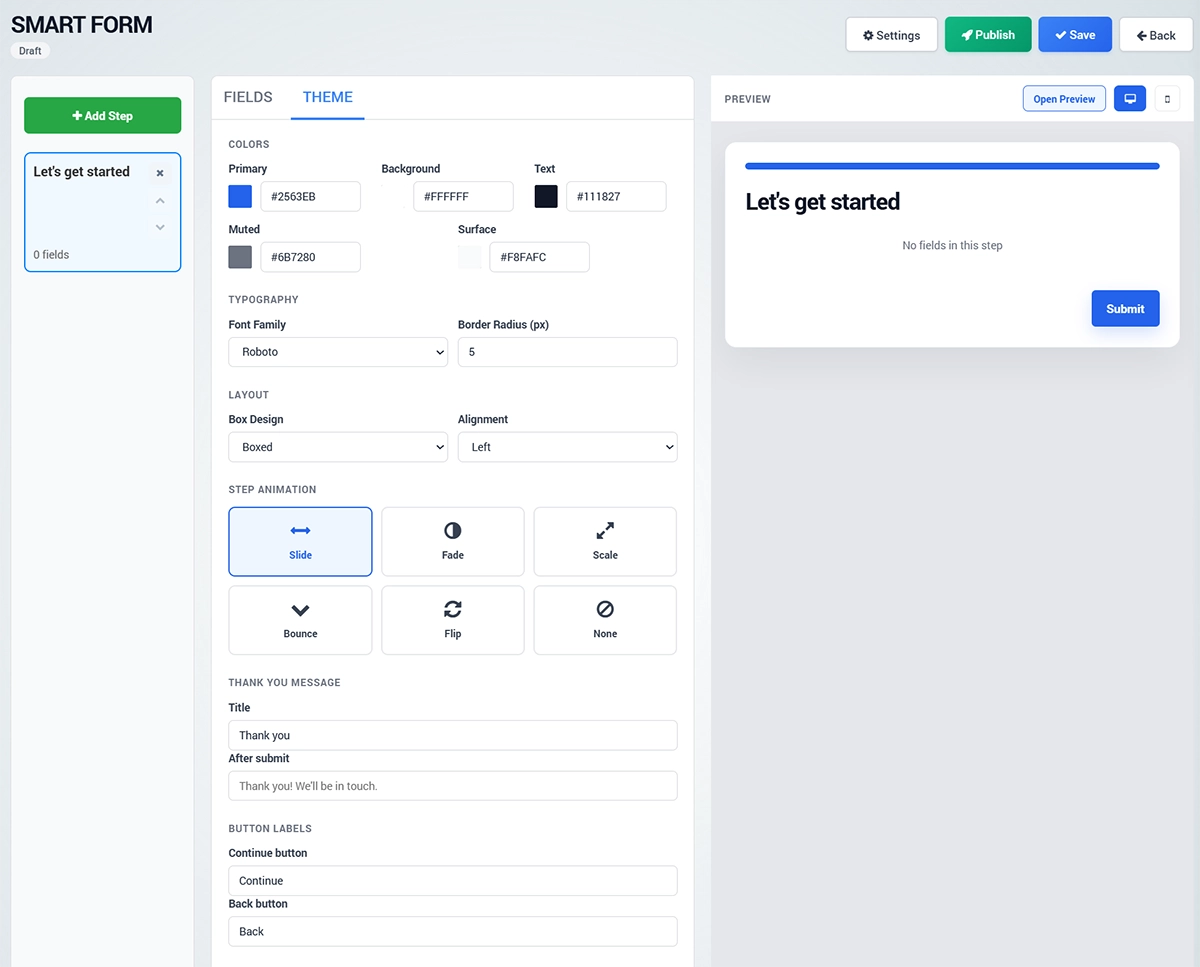
Open the Theme tab to adjust the visual style of the form.
You can change colors, font family, border radius, box design, alignment, and step animation.
You can also customize the thank-you message shown after submission and edit button labels such as Continue and Back.
Publishing the Form
Use Save to store changes while working on the form.
Use Publish when the form is ready to be used.
After publishing, the form can be shared, embedded, or used as part of your Engage lead capture and follow-up workflow.
Best Practices
Keep forms short and focused.
Ask only for information that will be used for follow-up, segmentation, or campaign targeting.
Use tags whenever possible, because structured answers are easier to segment than free-text responses.
Preview the form before publishing to make sure it is clear, simple, and easy to complete.