
Applications
The Applications section allows you to choose which games, programs, and media applications customers can access on your Cafe & Kiosk stations.
You can organize applications into categories, customize how they appear on the customer screen, and create different configurations for different computers.
For example, gaming computers can display popular games, while public-access computers can provide only selected applications.
Configure Apps
Open Cafe & Kiosk / Applications page to manage your application configurations.
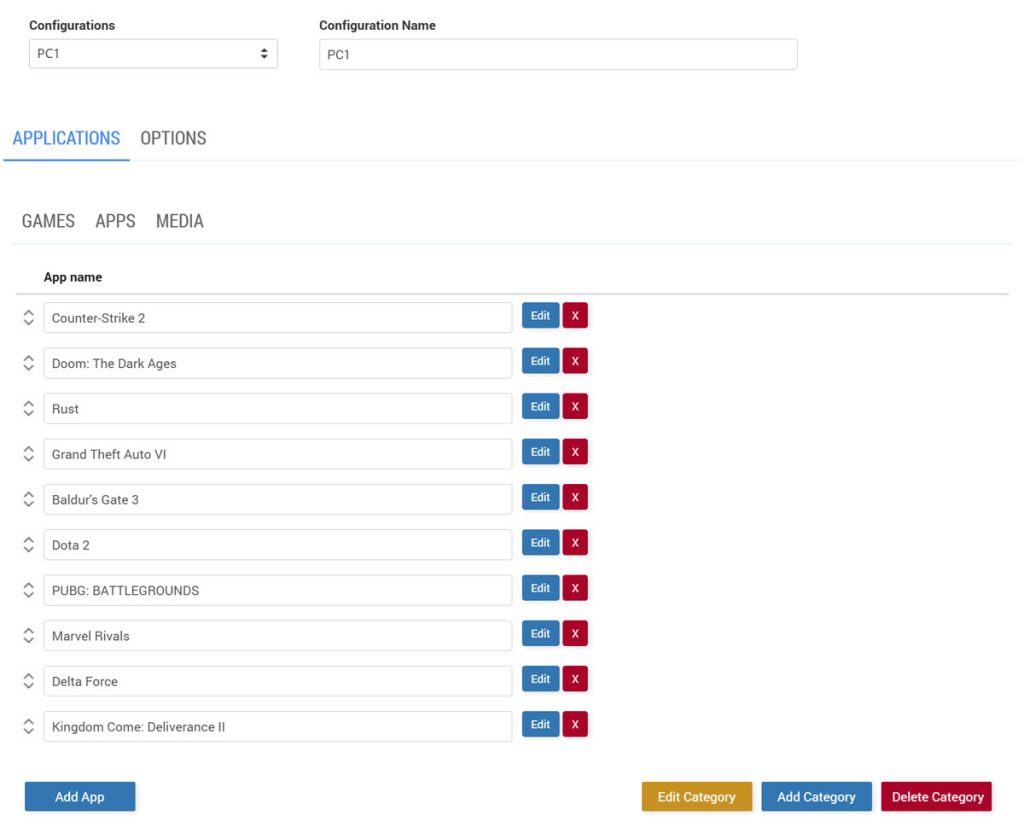
At the top of the Configure Apps page, you will find:
Configurations: Select an existing configuration to view or edit its applications and settings.
Configuration Name: Enter a recognizable name, such as Gaming PC, Reception PC, or PC1.
Save: Save changes to the currently selected configuration.
Save as new: Create a new configuration based on the current settings without replacing the original.
Back: Return to the previous page.
A configuration contains the applications, categories, and options that determine how the customer-facing application interface is organized.
You can create different configurations and assign them to individual stations.
Applications Tab
Select the Applications tab to manage the games, programs, and media available to customers.
Applications are organized into three categories:
Games: Computer games, such as Counter-Strike 2, Dota 2, or other installed titles.
Apps: General applications, such as browsers, Notepad, Steam, Discord, or other utilities.
Media: Media-related applications and content you want to make available to customers.
Select a category to view its existing applications.
For each application, you can:
Edit: Change the application's name, launch command, image, and description.
Delete (X): Remove the application from the selected configuration.
Up/Down arrows: Change the order in which applications appear.
Add App: Add a new application to the selected category.
Note: Adding an application to Cafe & Kiosk does not install it on the computer. The application must already be installed and accessible on the station where it will be used.
Add or Edit an Application
Click Add App to create a new entry, or click Edit next to an existing application to modify its settings.
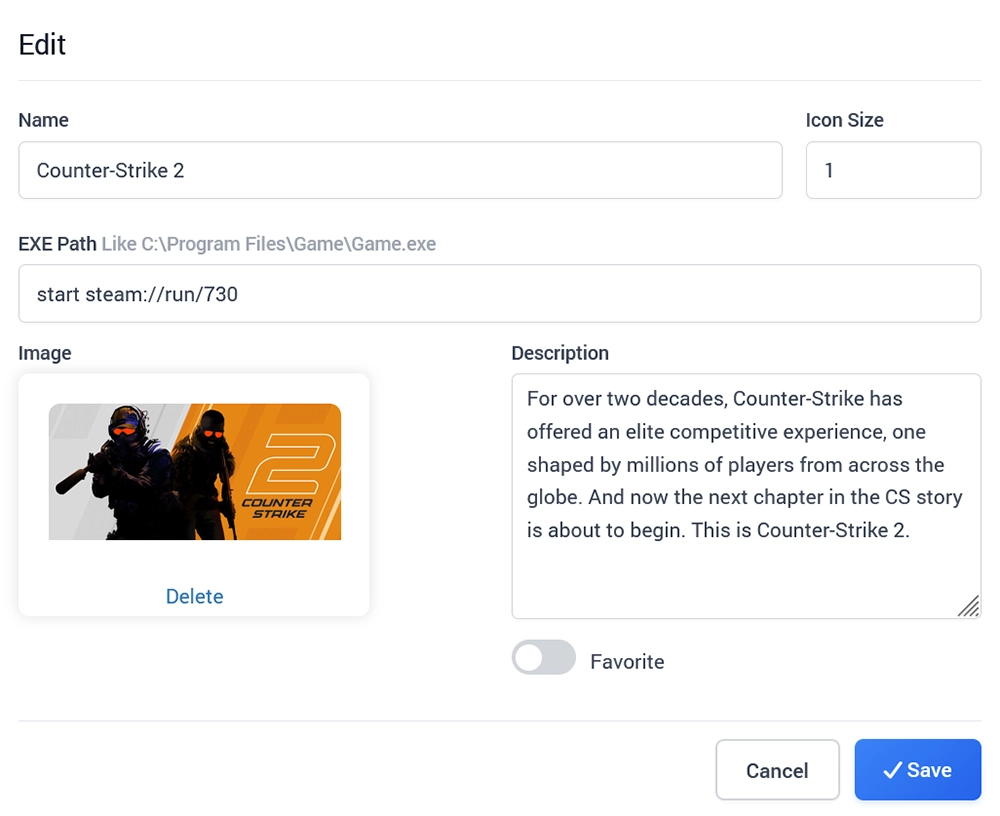
Complete the following fields:
Name
Enter the name displayed to customers, such as Counter-Strike 2, Steam, or Notepad.
Icon Size
Choose the size of the application icon in the customer interface.
EXE Path
Enter the full path or supported launch command used to start the application.
For example:
Notepad: C:\Windows\System32\notepad.exe
Calculator: calc.exe
Counter-Strike 2 through Steam: steam://run/730
Make sure the path or launch command works on the computer where the application will run.
Image
Upload or select an image representing the application. This image is displayed in the application selection interface.
Description
Enter a short description explaining what the application or game does.
Favorite
Enable this option to mark the application as a favorite. Favorite applications can be highlighted or displayed in the favorites slider when configured.
Click Save to save the application details, or Cancel to discard your changes.
Organize Applications into Categories
Use the Games, Apps, and Media categories to organize the applications displayed to customers.
For example:
Games: Counter-Strike 2, Dota 2, PUBG.
Apps: Notepad, Paint, Calculator, Steam, Discord.
Media: Selected media players or other media-related applications.
To manage categories, use the buttons at the bottom of the page:
Add Category: Create a new category.
Edit Category: Rename or modify the selected category.
Delete Category: Remove the selected category.
To add a program to a category, select the category and click Add App.
Tip: Keep categories simple and organized so customers can quickly find the applications they need.
Options Tab
The Options tab controls additional behavior and display settings for the selected application configuration.
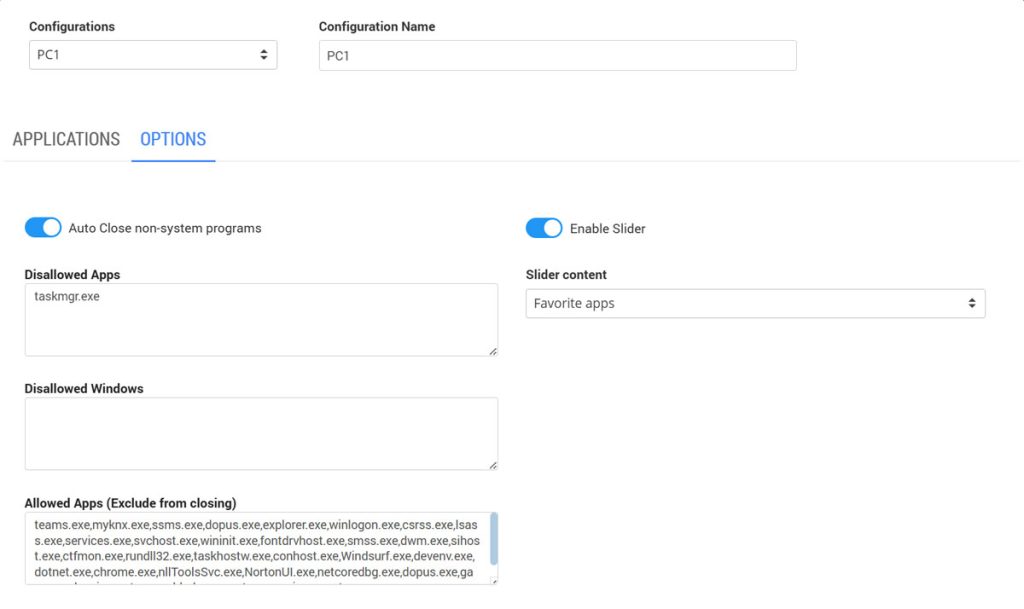
Application and Window Control
Auto Close non-system programs
When enabled, Cafe & Kiosk automatically closes non-system programs according to its session control behavior.
This helps prevent customer applications from remaining open when they should no longer be in use.
Disallowed Apps
Enter the executable names of programs that should not be allowed to run.
Example:
taskmgr.exe,powershell.exe,cmd.exe
Separate multiple executable names with commas.
Disallowed Windows
Enter window titles or names that should be restricted.
Example:
Open,Save,Settings,Control Panel
Separate multiple entries with commas.
Allowed Apps (Exclude from closing)
Specify applications or Windows processes that should not be automatically closed.
This is useful for programs and background services required for normal station operation.
Important: Modify process and window restrictions carefully. Incorrect settings may interfere with required Windows functions or installed applications. Keep the default values unless changes are necessary.
Slider Settings
Enable Slider
Enable this option to display a slider in the customer-facing application interface.
Slider Content
Choose the content displayed in the slider, such as Favorite apps.
For example, enabling the slider with Favorite apps selected allows featured applications to be presented more prominently.
Save and Assign Your Configuration
After adding your applications and adjusting the settings:
Enter a recognizable Configuration Name.
Click Save to update the current configuration, or Save as new to create a separate configuration.
Open Cafe & Kiosk / Stations.
Select the computer you want to configure and open its settings.
Under App Configuration, select your saved configuration.
Click Save Changes.
The selected configuration is now assigned to that station.
You can reuse the same configuration on multiple computers or create separate configurations for different types of stations.
Example: Create a configuration named Gaming PCs with games and gaming launchers, and another named Reception PCs containing only basic applications.