
Configuration
The Configuration section allows you to manage pricing and access settings for Cafe & Kiosk stations.
Two charging methods are available:
Play and Pay: Customers use a computer or gaming station first and pay for their usage afterward.
Pre-paid: Customers access stations using prepaid time, credits, or Internet Plans assigned to their accounts.
Select the appropriate tab to configure each method.
Play and Pay
The Play and Pay tab allows you to create pricing configurations for customers who pay after using a station.
For example, you can charge $5 per hour for a gaming computer, with a minimum charge of $2.50.
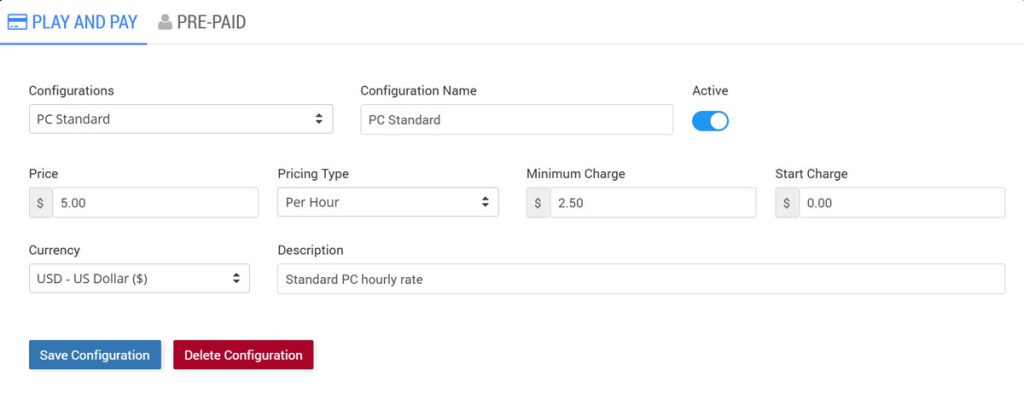
Pricing Configuration
Configurations:
Select an existing pricing configuration to view or modify its settings.
Configuration Name:
Enter a recognizable name, such as PC Standard, Gaming Premium, or Console Hourly.
Active:
Enable this option to make the pricing configuration available for use.
Price:
Enter the amount charged according to the selected Pricing Type.
Pricing Type:
Select how usage is calculated, such as Per Hour.
Minimum Charge:
Set the minimum amount a customer must pay, even for a short session.
Start Charge:
Enter an initial charge applied when a session begins. Set this to 0.00 if no starting fee is required.
Currency:
Select the currency used for the configuration.
Description:
Enter a short description to help identify the pricing option.
Save Your Configuration
Select an existing configuration or enter the details for the configuration you want to create.
Configure the pricing, minimum charge, starting charge, and currency.
Enable Active if the configuration should be available.
Click Save Configuration to save your settings.
Use Delete Configuration only when the selected pricing configuration is no longer needed.
Assigning Pricing to a Station
After saving the configuration, open Cafe & Kiosk / Stations, select the required station, and choose your configuration under Play and Pay Pricing. Click Save Changes.
How Play and Pay Works
The operator selects an available station.
The operator starts a customer session and sets the applicable time or cost limit.
The customer uses the station.
When the session ends, the usage charge is added to the POS cart.
The cashier completes the payment and issues a receipt.
Pre-paid
The Pre-paid tab allows you to configure how customers access prepaid services, select Internet Plans, and extend their available usage time.
You can choose the customer login page, configure free access, and select which paid plans customers can purchase.
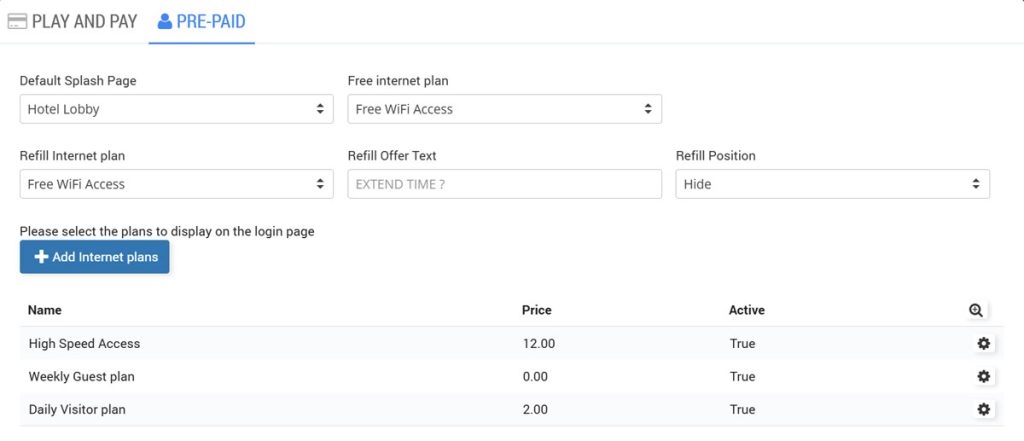
Pre-paid Configuration
Default Splash Page
Select the login page displayed to customers when they access a station.
For example, choose Hotel Digital Guide to display your hotel's branded login page.
Free Internet Plan
Select the Internet Plan used when customers receive free access.
For example, choose Free Wifi if you want to provide a free access option.
Refill Internet Plan
Select the Internet Plan used when customers extend or refill their existing access.
If you do not offer a dedicated refill plan, leave this option unselected.
Refill Offer Text
Enter the message displayed to customers when additional access time is offered.
For example: EXTEND TIME?
Refill Position
Choose where the refill offer appears on the customer interface, such as Bottom.
Select Internet Plans for the Login Page
The list below the Pre-paid settings determines which Internet Plans are available on the customer login page.
Click Add Internet plans to add plans to the list.
The table displays:
Name: The Internet Plan name, such as Free Wifi, Default Plan, or High-Speed Access.
Price: The price of the Internet Plan.
Active: Indicates whether the plan is enabled.
Gear Icon: Opens the settings for the selected plan.
Example:
You can offer a free access plan alongside paid plans, allowing customers to choose the option that best suits their needs.
How Pre-paid Access Works
The customer opens the login page displayed on the station.
The customer signs in or selects an available access option.
Cafe & Kiosk uses the customer's available prepaid access according to the configured plan.
When additional access is needed, the customer can use the available refill option, if configured.
Note:
Pre-paid access uses Internet Plans configured in your Antamedia Portal. Make sure the required plans are created and available before selecting them here.
WiFi Hotspot Internet plans can also be used here, allowing the same login page to support both WiFi access and Cafe & Kiosk usage where enabled.