
Installation
Follow this step-by-step guide to install Antamedia Cafe & Kiosk, register your computer, configure the local administration panel, and connect the station to your Antamedia Portal.
Prepare Your Computer
Before installing Cafe & Kiosk, make sure your Windows computer meets the following requirements:
Internet Connection: Ensure the computer has a stable Internet connection to communicate with the Antamedia Portal.
Date and Time: Verify that the computer's date, time, and time zone are correct and synchronized.
Firewall and Antivirus: Make sure security software does not block the Cafe & Kiosk application or its Internet connection.
Administrator Access: You must have Windows administrator permissions to install and configure the application.
Cafe & Kiosk should be installed on each computer that you want to manage as a Cafe or Kiosk station.
Generate Your Registration Code
Log in to your Antamedia Portal account and open the Install page.
Click Generate Registration Code button to create a registration code for the computer you want to connect.
The Registration Code is a one-time authorization code that links your Windows computer to your Antamedia Portal account.
Each computer must be registered separately so that it can be identified and managed through the dashboard.
Important: Keep the Registration Code available during the installation and registration process.
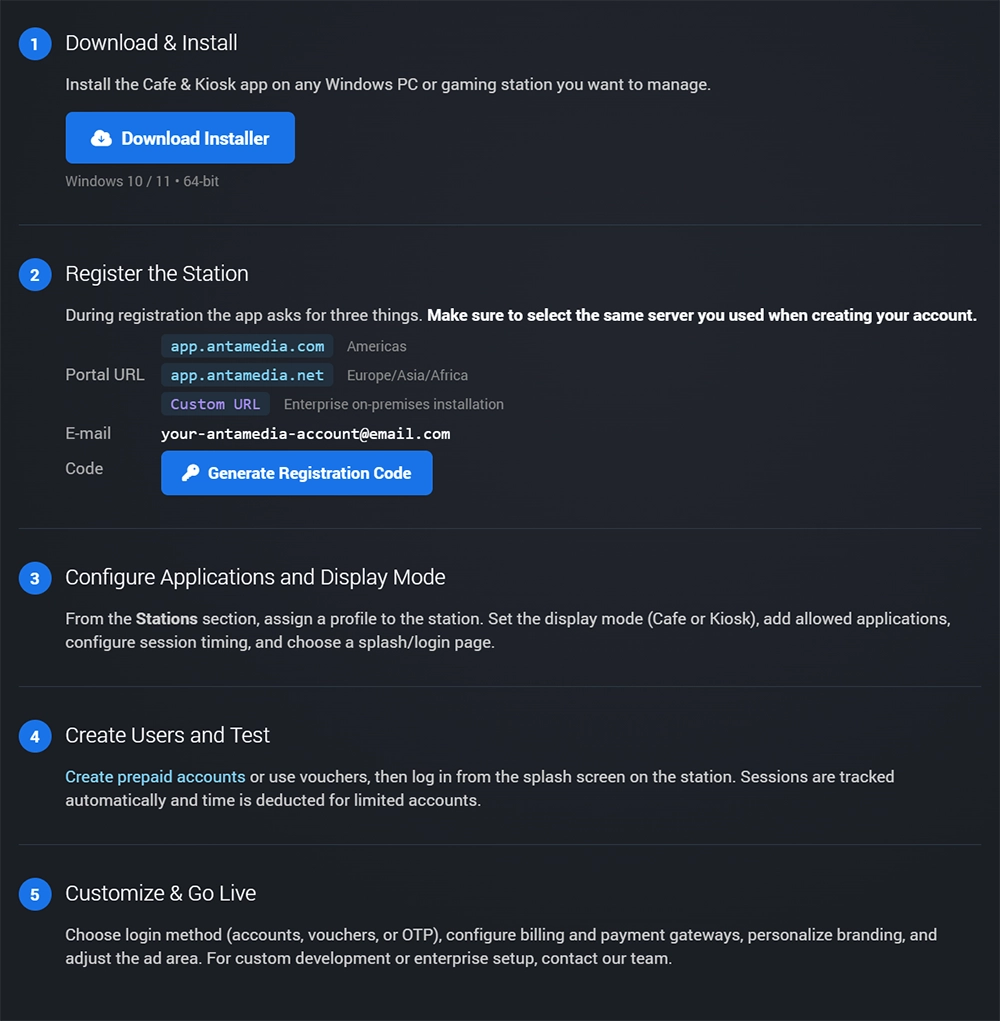
Download and Install Cafe & Kiosk
On the computer you want to configure:
Log in to your Antamedia Portal account.
Open the Install page and download the Cafe & Kiosk installer.
Right-click the downloaded installer and select Run as administrator.
Choose the installation folder or keep the default location.
Click Install and wait until the installation is complete.
Once you see Installation Complete!, click Run to launch the application.
The installation may take some time to finish. Wait for the completion message before closing the installer.
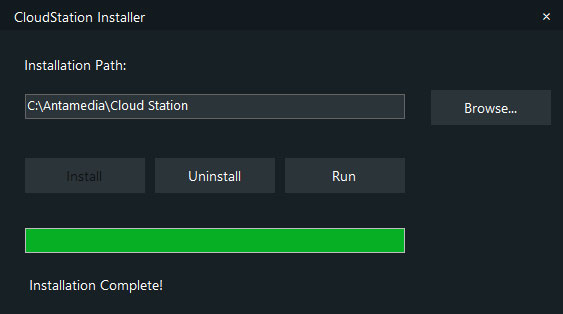
Register Your Computer
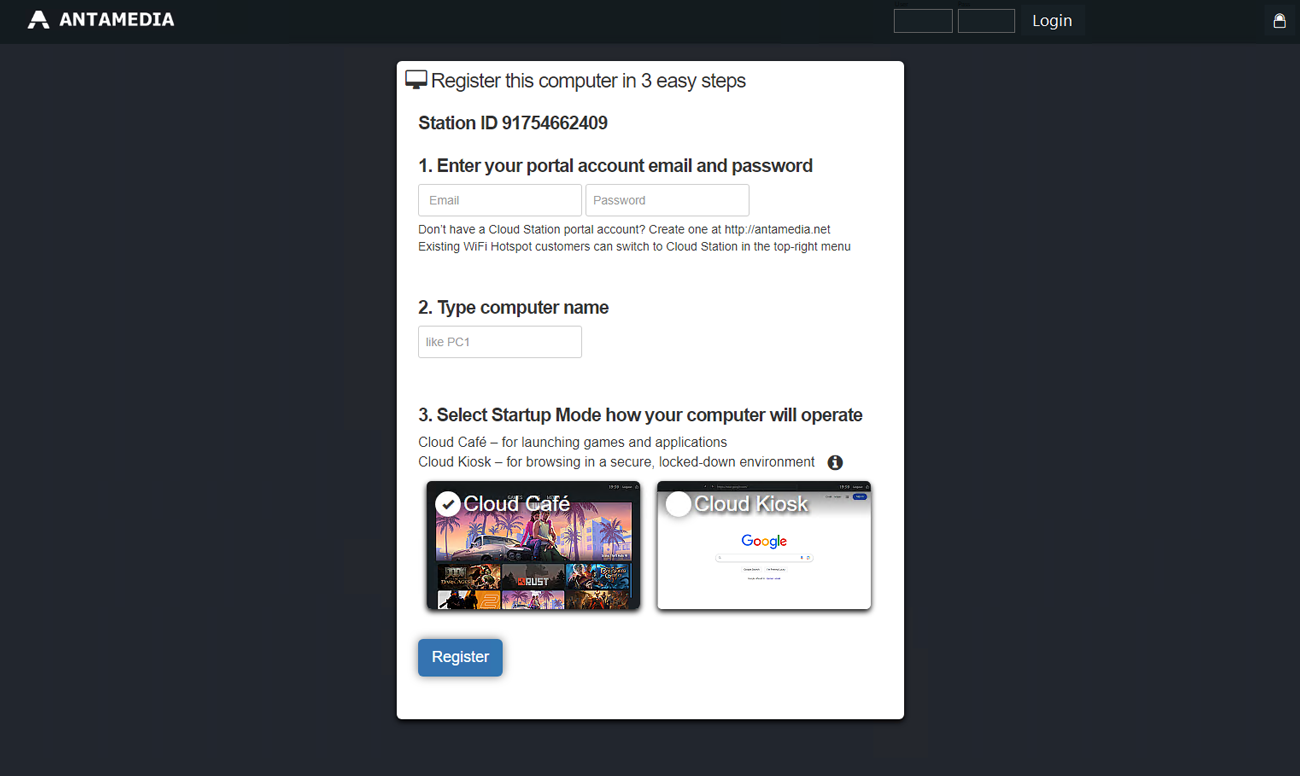
When Cafe & Kiosk starts for the first time, the computer registration screen appears.
Complete the following fields:
Portal Account Credentials
Enter the email address and password associated with your Antamedia Portal account.
These credentials authorize the computer to connect to your account.
Computer Name
Enter a unique, recognizable name for this station, such as Reception-PC, Gaming-PC-01, or Lobby-Kiosk.
Use a descriptive name to identify the computer easily when managing multiple stations.
Startup Mode
Select how the computer will operate:
Cafe Mode: Designed for gaming centers, Internet cafes, and shared computers where customers launch games and applications.
Kiosk Mode: Designed for public access terminals, browsing stations, and self-service environments requiring a restricted interface.
After completing the required information, click Register.
The application will attempt to link the computer to your Antamedia Portal account.
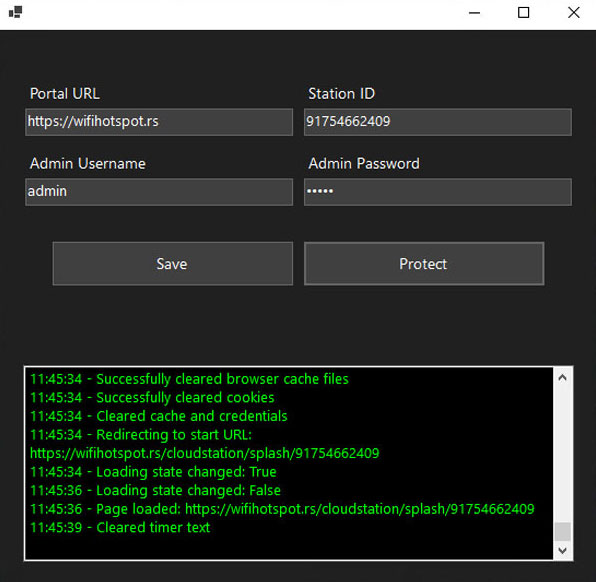
Configure the Local Admin Panel
After registration, open the Cafe & Kiosk local administration panel to configure the computer.
On first login, the default administrator username and password fields are blank. Click Login to continue and create your administrator credentials when prompted.
The local administration panel contains the following settings:
Portal URL: Enter the URL of the Antamedia Portal server where your account is registered. Make sure you use the correct server URL.
Station ID: The unique identification number assigned to this computer. It identifies the station when communicating with the portal.
Admin Username: Enter the username you want to use for local administration.
Admin Password: Create a secure password to prevent unauthorized access to station settings.
Click Save to store your configuration.
Use Protect to activate the application's protection functionality after confirming that your settings are correct.
Important: Keep your local administrator credentials in a secure location. You may need them later to modify settings, troubleshoot issues, or maintain the station.
Verify the Station in Your Portal
Once the computer has been registered and configured, log in to your Antamedia Portal.
Locate the newly registered computer in your station management dashboard.
Verify that:
The station appears under your account.
The station name matches the one entered during registration.
The computer is connected to the correct portal.
The station is operating in the intended Cafe or Kiosk mode.
If the station does not appear, check the Internet connection, Portal URL, and registration information.
You can continue setting up your station, managing customer access, and controlling connected computers from your Antamedia Portal dashboard.
Troubleshooting
The application cannot connect to the portal
Check your Internet connection, confirm that the Portal URL is correct, and make sure your firewall or antivirus is not blocking the application.
The computer does not appear in the dashboard
Confirm that registration completed successfully and that you are logged in to the same Antamedia Portal account used during registration.
The installer appears to be taking too long
Allow the installer enough time to finish. Check for the installation completion message before attempting to run or reinstall the application.
The local administrator cannot log in
Confirm that you are using the local administrator credentials configured for this computer, rather than your Antamedia Portal account credentials.