
Stations
The Station page allows you to configure how a selected computer or device operates. You can change its name, assign games and applications, select pricing options, and choose the login page displayed to customers.
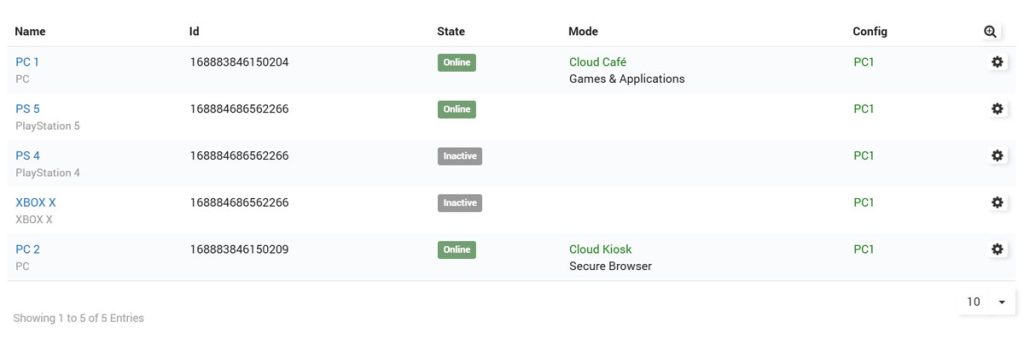
View and Manage Your Stations
Open Cafe & Kiosk / Stations page to see the list of registered devices.
Each row represents one station.
The list displays the following information:
Name: The station name, such as PC 1, PC 2, or PS 5.
ID: A unique identification number assigned to the station.
State: Shows whether the station is Online or Inactive.
Mode: Displays the selected operating mode, such as Games & Applications or Secure Browser.
To configure a station:
Find the station you want to manage.
Click the gear icon on the right side of its row.
The station settings will open.
Review or change the required settings.
Example:
To set up a gaming computer, enter Gaming PC 1 as its name, select PC as the device type, choose Games & Applications as the Start Mode, assign the appropriate App Configuration, and select a Splash Page. Click Save Changes to finish.
Stations Settings
Each station has its own settings, allowing you to control how customers access and use the device.
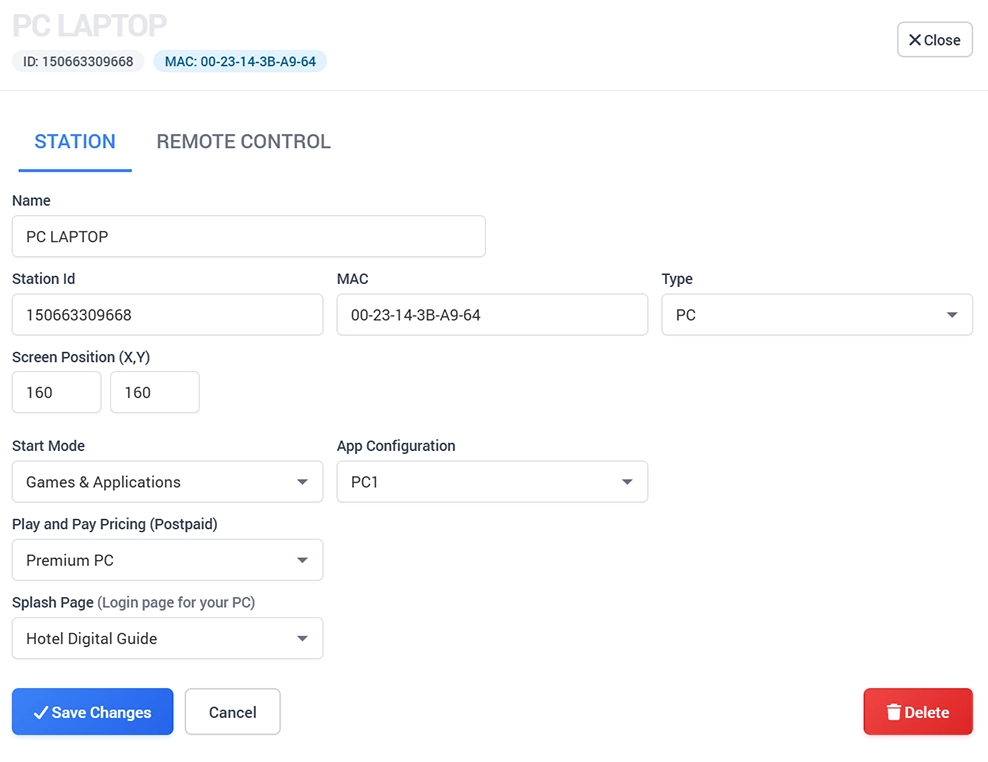
Station Information
Name: Enter a recognizable name for the station, such as Gaming PC 1, Reception PC, or PlayStation 5. This name helps you identify the device in the Stations list.
Station ID: A unique identification number assigned to the station. For automatically registered computers, keep the existing ID unchanged.
MAC: The network MAC address used to identify the device. For automatically registered computers, keep the existing address.
Type: Select the correct device type, such as PC or a supported gaming console.
Where to find Station ID and MAC: Both values are displayed at the top of the Station Settings window, directly below the station name. For registered Windows computers, you can also find them in the Cafe & Kiosk local Admin Panel.
To find your MAC address in Windows, open Command Prompt, type ipconfig /all, and look for Physical Address under your active network adapter.
Important: Do not change the Station ID or MAC address of an already registered computer unless instructed by Antamedia Support.
Display and Startup Settings
Screen Position (X, Y): Defines the horizontal and vertical position of the application interface on the screen. Change these values only if the interface needs repositioning. Otherwise, keep the existing settings.
Start Mode: Determines what customers can access when using the station:
Games & Applications: Displays the configured games and applications.
Secure Browser: Provides access to a restricted web browsing environment.
Customer Access and Pricing
App Configuration: Select an existing application configuration that contains the games and applications available on this station. For example, select PC1 to use the configuration assigned to that gaming computer.
Play and Pay Pricing (Postpaid): Select a pricing configuration if customers are allowed to use the station and pay afterward. If you do not use postpaid sessions, leave Not Configured selected.
Splash Page: Select the login page that customers will see when accessing the computer. For example, choose a branded hotel login page for a guest computer or a gaming login page for an Internet cafe.
Remote Control
The Remote Control tab allows you to remotely switch connected devices, such as gaming consoles, TVs, and other equipment, on or off using compatible IoT controllers.
Enable Remote Power Control and select the supported IoT platform Sonoff or Tuya.
Note: Remote Power Control is optional and is not required for normal Windows station management.
Sonoff supports local network control without a paid subscription on compatible devices, while Tuya integration requires an active Tuya subscription.
Tuya Setup
Cafe & Kiosk integrates with Tuya IoT to enable power management for external devices.
To control power for external hardware (like TVs, access points, routers, consoles, etc.) through Cafe & Kiosk, you must have a Tuya-compatible smart device (such as a smart plug, smart switch, or relay).
Cafe & Kiosk uses the Tuya IoT platform to manage power, which requires you to enter your Tuya API credentials (Client ID, Secret, Device ID, and API URL). Once connected, you can turn devices on or off remotely from the Antamedia portal.
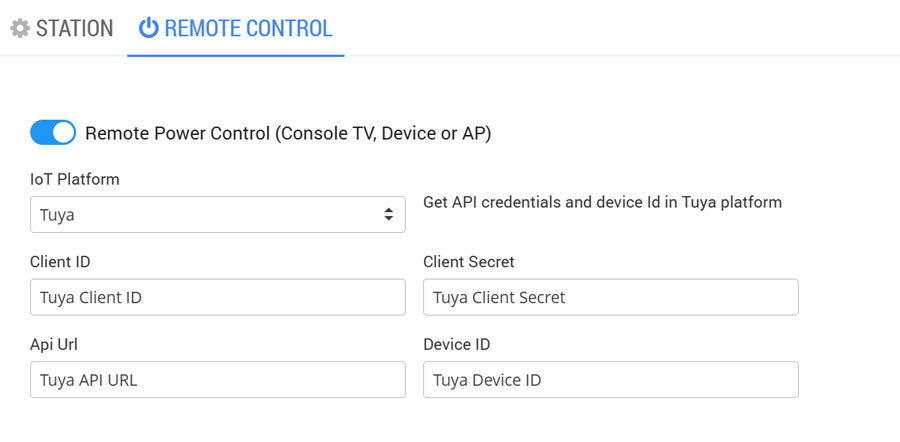
Create Tuya account
1. Open an account on Developer platform at platform.tuya.com
2. Create Cloud Project
3. Open Project and under Device tab Add Devices
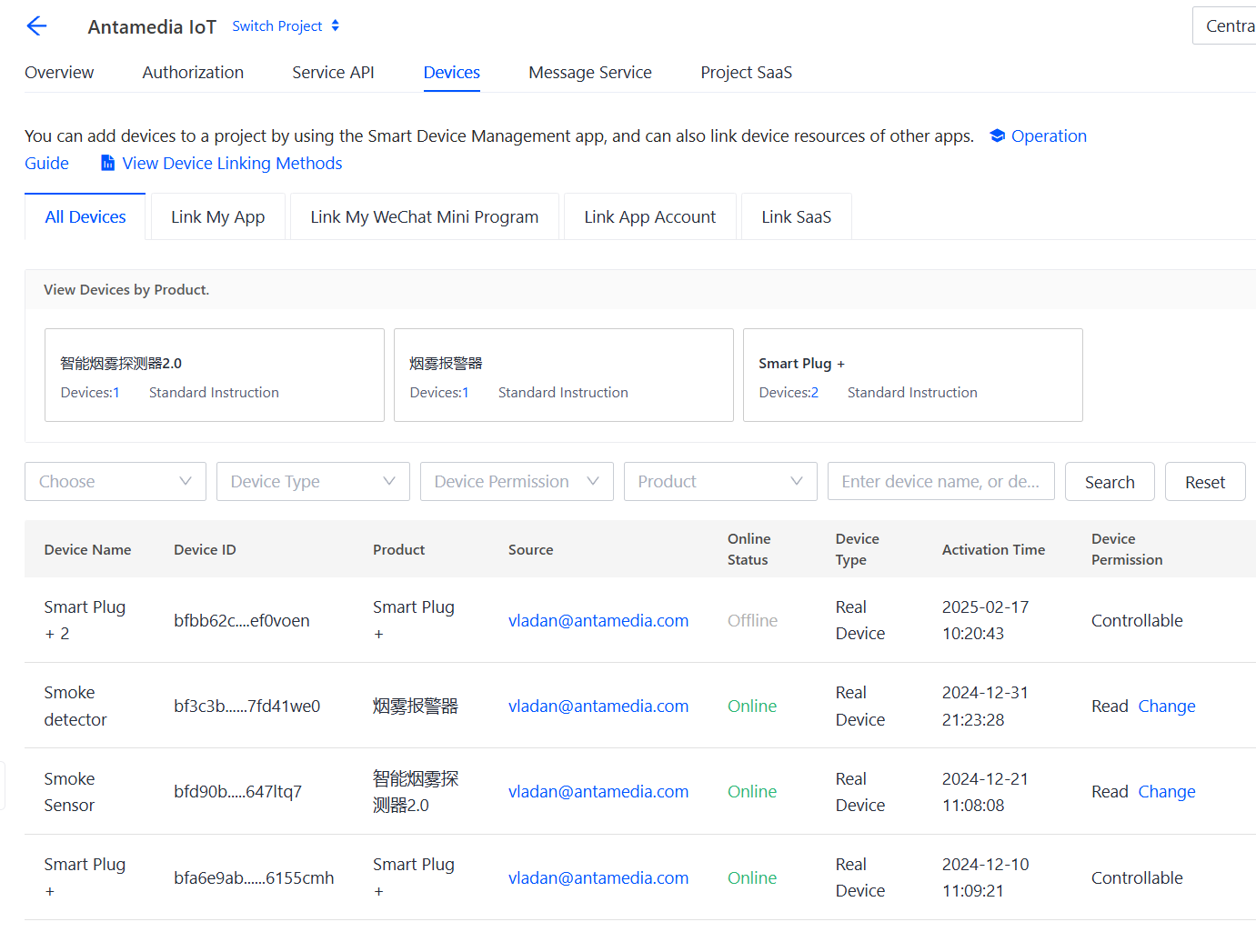
4. Add Authorization
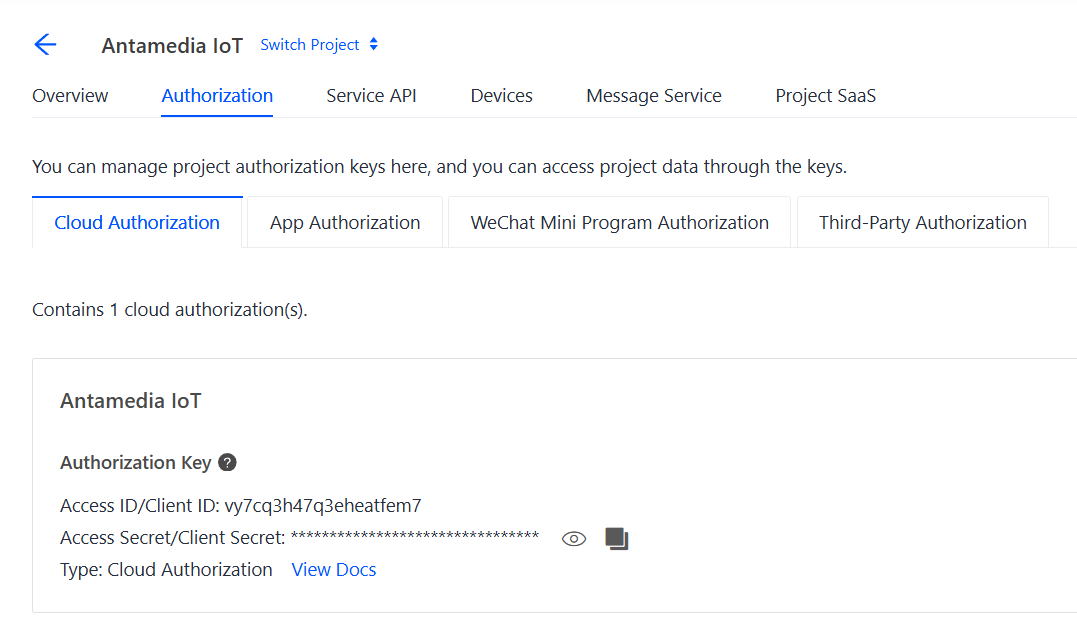
5. Fill in details in Antamedia platform and test
Sonoff Setup
Sonoff allows you to remotely turn connected devices, such as gaming consoles, TVs, and other equipment, on or off through your local network without a paid subscription.
To configure Sonoff Remote Power Control:
Connect a compatible Sonoff smart switch or plug to your local network.
Assign a static IP address or DHCP reservation to the Sonoff device.
Open Stations, select your station, and go to the Remote Control tab.
Enable Remote Power Control and select Sonoff as the IoT Platform.
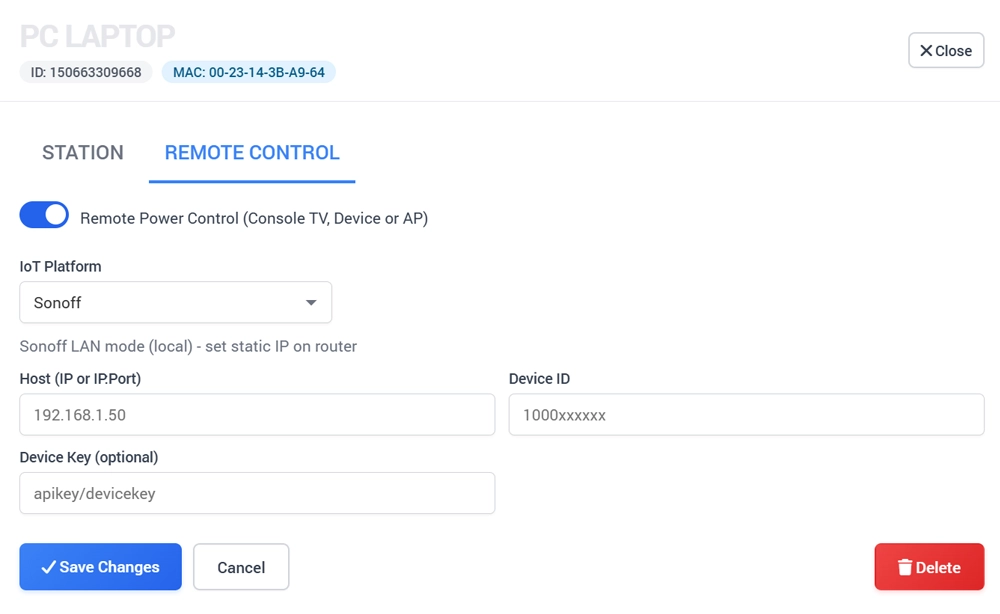
Complete the following fields:
Host (IP or IP): Enter the Sonoff device's local IP address, for example
192.168.1.50.Device ID: Enter the device identifier required by your Sonoff configuration.
Device Key (optional): Enter the API or device key if required.
Click Save Changes to save your settings.