
Admins
The Admins section allows you to create and manage users who can access and manage the Digital Guide administration platform.
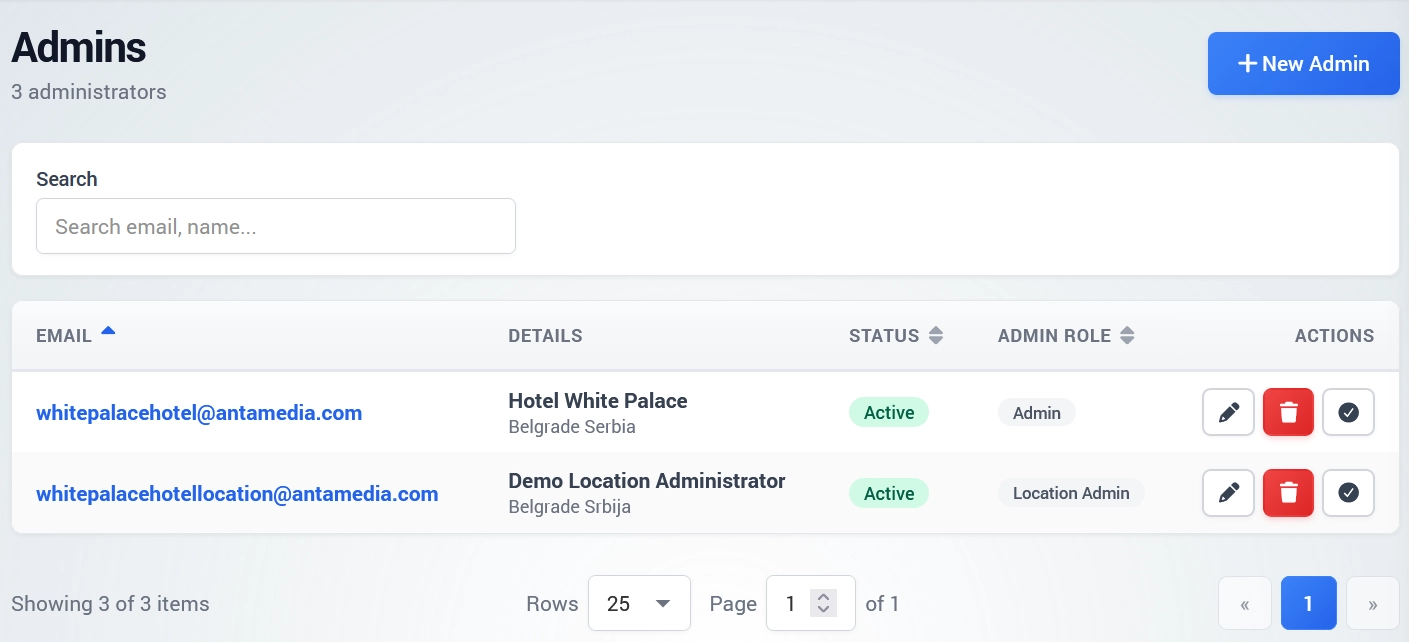
Depending on their role, users can be configured as Admin or Provider.
Important: The main administrator email cannot be changed or deleted.
All Admins
The All Admins section displays existing administrator and provider accounts together with their status and assigned role.
Each Admin or Provider uses their own login credentials to access the Digital Guide platform.
Create a New Admin
Click New Admin to create a new account.
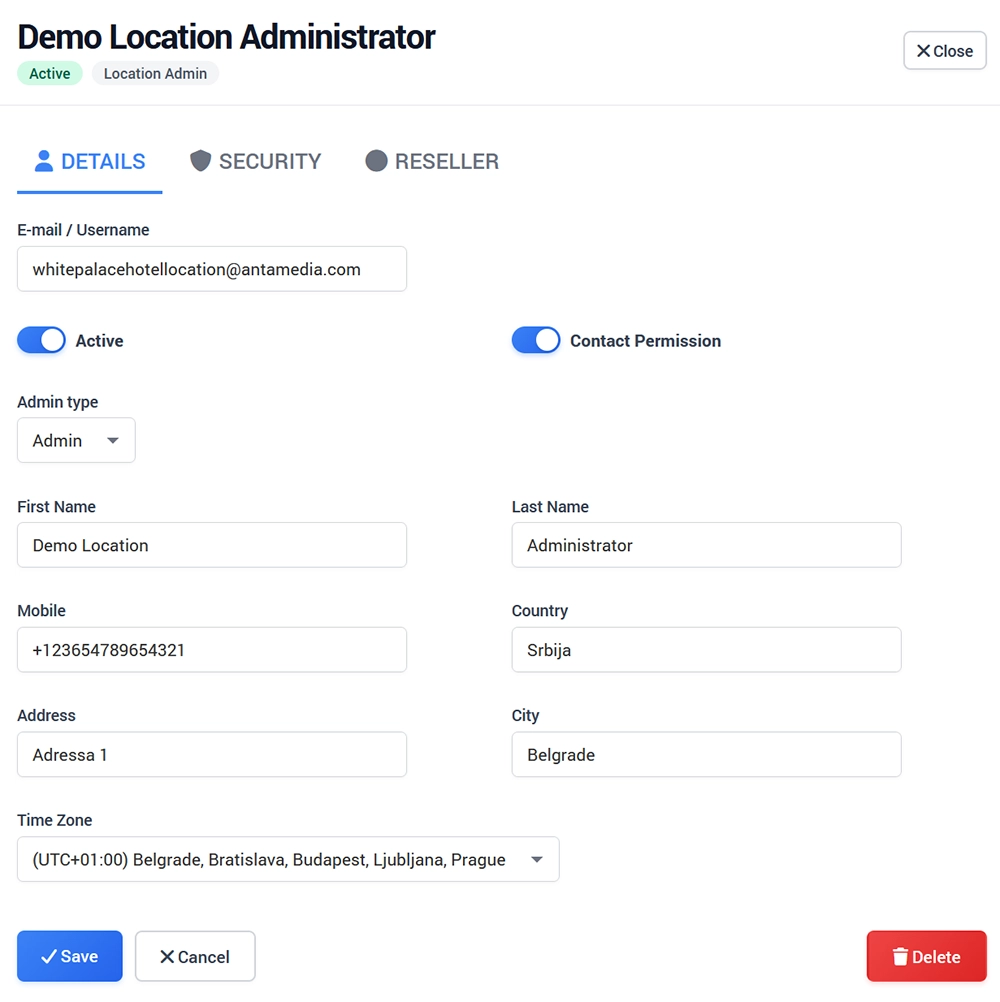
Enter the administrator information:
E-mail
Password and password confirmation
Contact permission if required
Admin type
First Name
Last Name
Mobile
Country
Address
City
Time zone
For Admin type, select:
Admin – Business owner or administrator
Provider – user who helps provide activities and services
Save the changes when finished. Login credentials can also be sent to the administrator by email.
Security
The Security tab contains login and account security settings for the selected administrator.
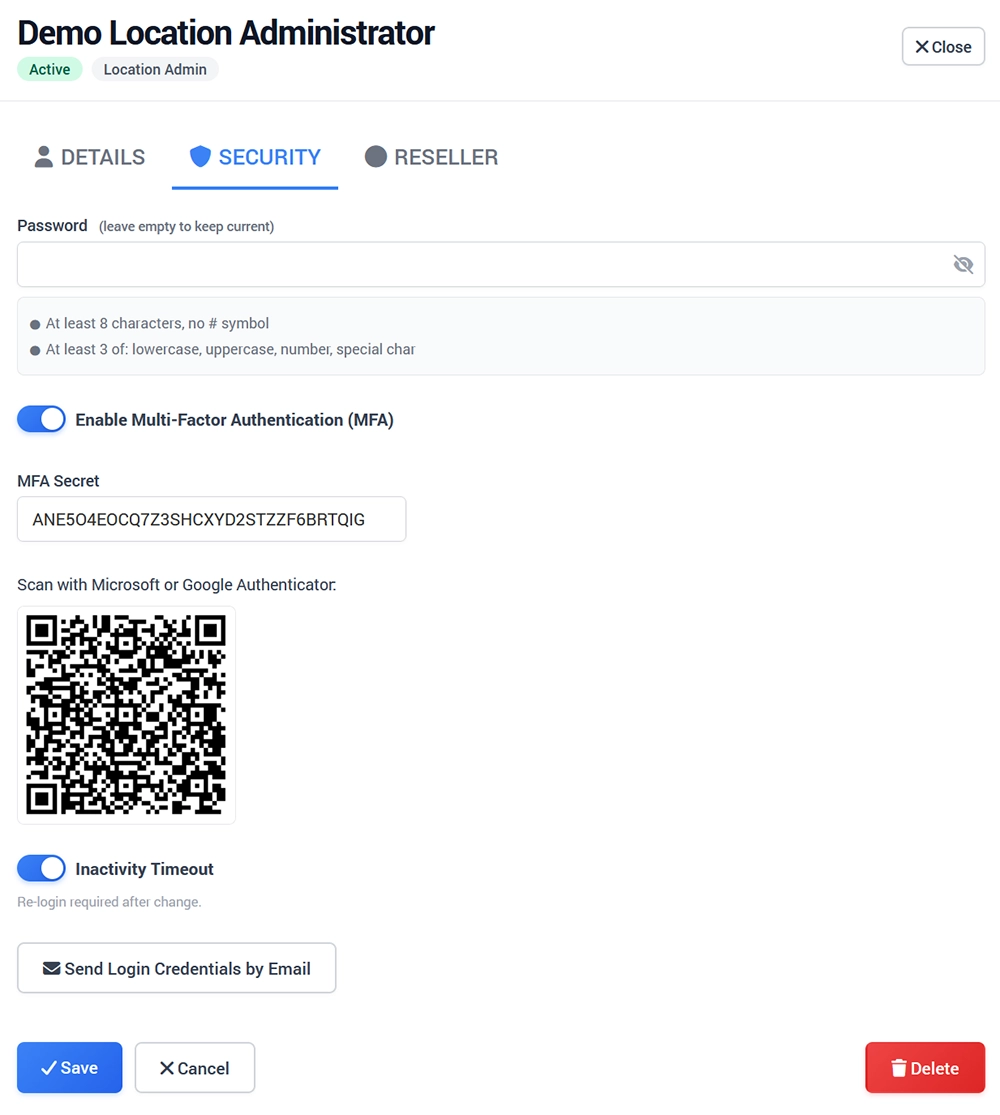
Available options include:
Password – set a new password for the administrator. Leave the field empty to keep the current password.
Multi-Factor Authentication (MFA) – adds an additional layer of security to the account.
MFA Secret and QR Code – used to configure MFA with Microsoft Authenticator, Google Authenticator, or another compatible authenticator app.
Inactivity Timeout – requires the administrator to log in again after the configured inactivity period.
Send Login Credentials by Email – sends the administrator their login information by email.
Click Save after changing security settings.
Reseller
The Reseller tab is part of the wider Antamedia Platform administration and is used when the administrator also participates in the WiFi voucher reseller system.
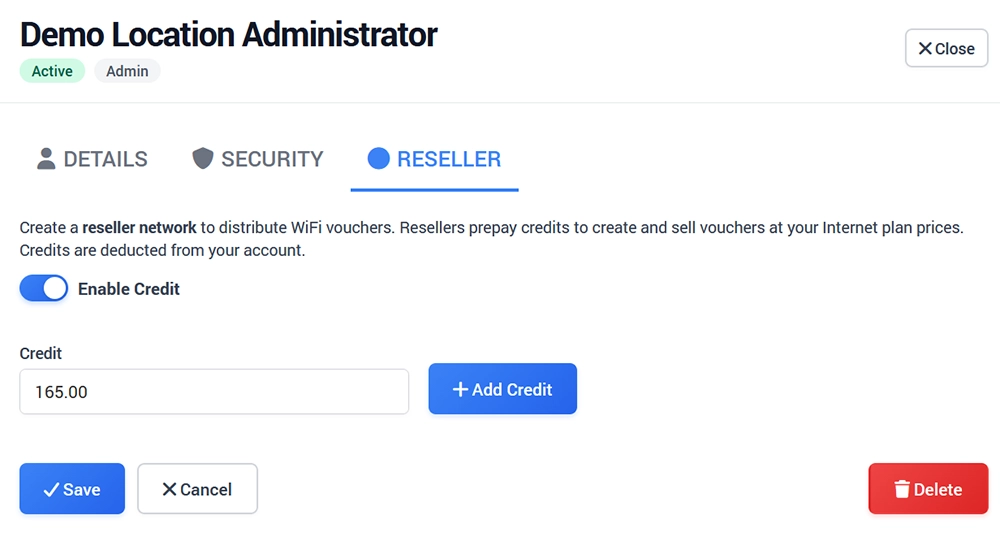
Enable Credit to allow the reseller account to use prepaid credit for creating and selling WiFi vouchers.
The available credit balance is displayed in the Credit field. Use Add Credit to increase the reseller balance when required.
Click Save to apply the reseller settings.
Invites
The Invites section allows owners and main administrators to invite other users to join the platform.
Click New Invite and select the invitation type:
Public Invitation – multiple users can sign up using the invitation link.
Personal Invitation – intended for a specific user and email address.
Select the role that will be assigned to the invited user and create the invitation.
To send invitations by email, email server settings must first be configured from the WiFi Hotspot Portal → My Account → Email section.